Introduction

SlopWorld
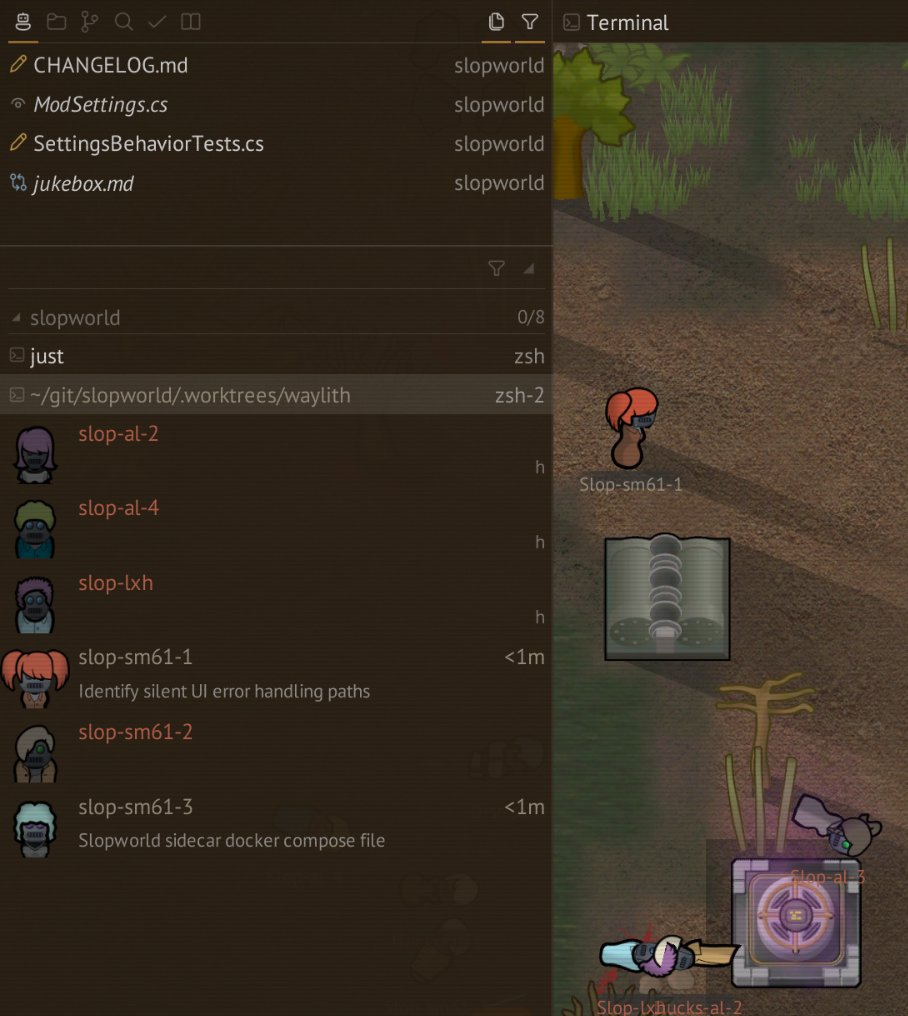
SlopWorld is a fun terminal-focused IDE for agentic coding, built on RimWorld. Your agents’ sessions appear as colonists. Select one and press T to open its terminal and give it work.
- Run agent CLIs, shells, and tools in persistent terminal sessions.
- Manage projects, mounts, and Git worktrees for parallel work.
- Configure sandboxing and network access per agent.
- Browse files, search code, review diffs, and commit changes.
- Hand off tasks between agents and track completion.
- Customize fonts, colors, and the UI layout.
- Enjoy the original soundtrack or tune to internet radio.
What’s inside
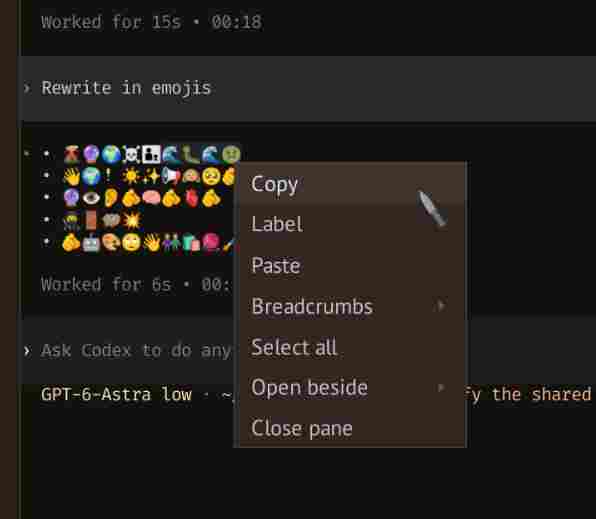
Your favorite Linux tooling, well-integrated:
- Alacritty for terminal emulation.
- tmux for multiplexing and persistent sessions.
- Bubblewrap for sandboxing and controlling filesystem access.
- pasta for networking in private sandboxes.
- git for version control and worktrees.
- Small UNIX friends: pagers, highlighters, ripgrep, git-delta.
SlopWorld consists of three components:
- A Rust daemon,
slopd, manages the sessions and sandboxes. - The RimWorld mod,
io.drsr.slopworld, puts their terminals and status into the game interface. slopctlprovides a command-line interface to the daemon’s API.
Get started
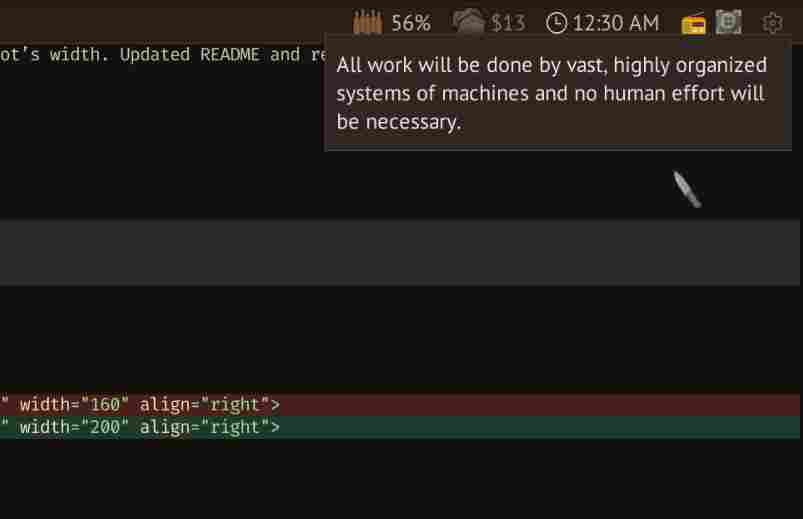
You need a native build of RimWorld 1.7, preferably the latest one. Buy the game on Steam, GOG, or directly from Ludeon Studios.
SlopWorld supports Linux. See the requirements and installation guide.
For experimental sidecar mode (slopd in Docker) follow the sidecar worker guide.
From binaries
Get Arch, Debian/Ubuntu, and Fedora packages from GitHub Releases.
See the installation instructions for installing a package, attaching the mod, and starting the daemon.
From source
Install the just command runner
and the other build prerequisites.
git clone https://github.com/droserasprout/slopworld.git
cd slopworld
RIMWORLD=/path/to/RimWorld/game just install
slopworld
RIMWORLD defaults to ~/.local/share/Steam/steamapps/common/RimWorld.
Always start the “game” with slopworld. The mod only activates in a separate profile and should stay disabled in vanilla installation.
License

SlopWorld is licensed under MIT. Bundled third-party components and assets retain their own licenses and attribution.
“Portions of the materials used to create this content/mod are trademarks and/or copyrighted works of Ludeon Studios Inc. All rights reserved by Ludeon. This content/mod is not official and is not endorsed by Ludeon.”
Quickstart
A quick tour covering core concepts and usual workflow.
First, follow the installation guide, or set up Sidecar mode to run the daemon in a container.
Prepare your tools
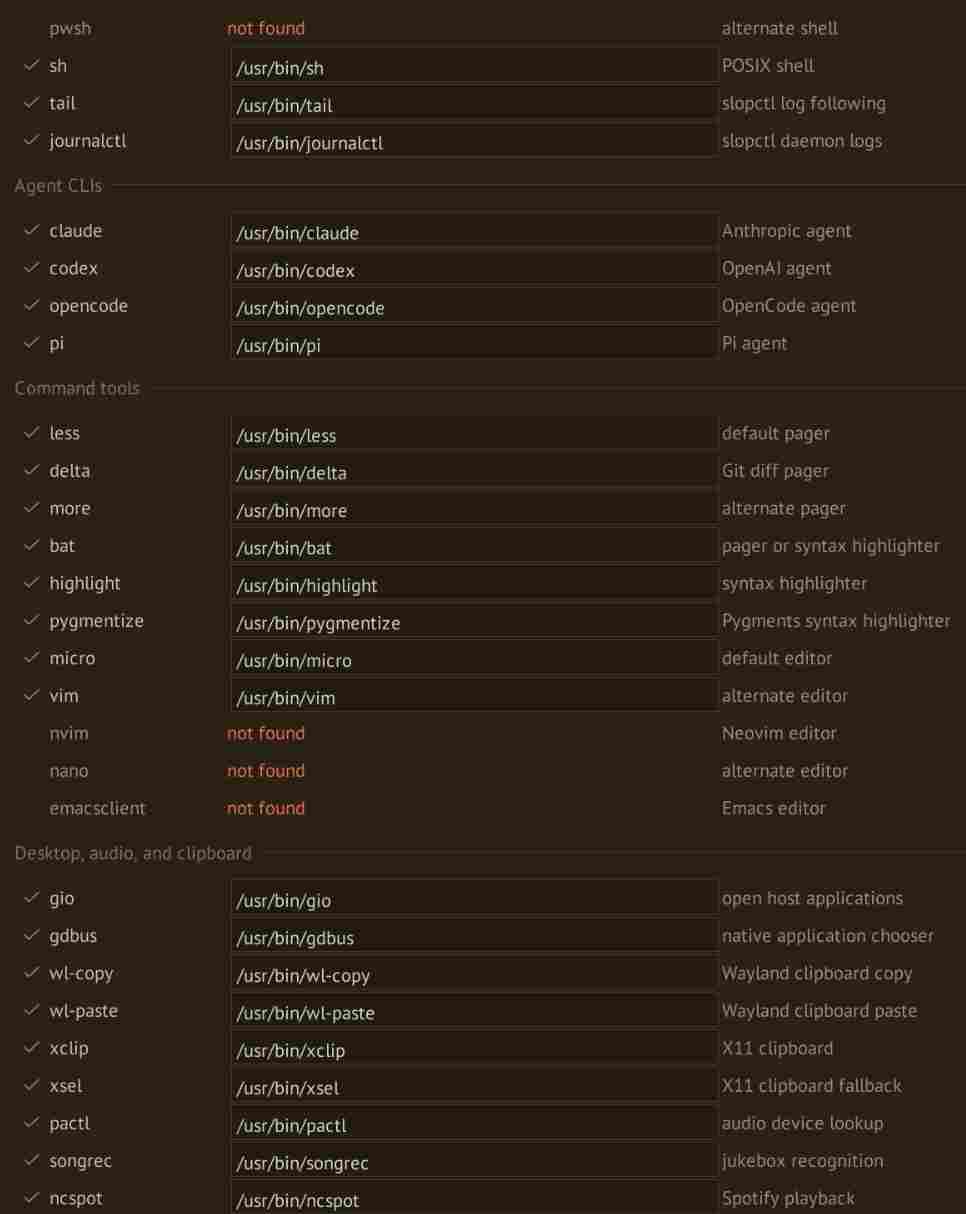
Install the optional CLI tools you want to use on the machine running the daemon. In sidecar mode, that means inside the container.
SlopWorld integrates with these tools to some extent:
- Agents:
codex,claude,pi,opencode. - VCS, search:
git,rg. - Code and diffs:
bat,less,delta,pygmentize,highlight. - Editors:
micro,vim,nvim,nano,emacsclient. - Shells:
bash,zsh,fish,nu,pwsh.
If your favorite agent or tool is missing, it doesn’t mean it’s not supported. You can create custom app presets in settings; see Command presets.
Prepare the workspace
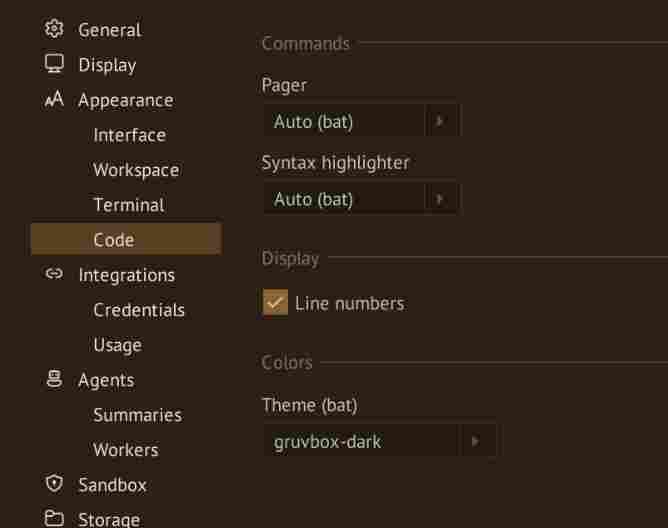
Launch using the command from your installation guide: slopworld for a local
daemon, slopworld --endpoint NAME for a saved remote connection, or
just sidecar-run from the source checkout for the sidecar workflow.
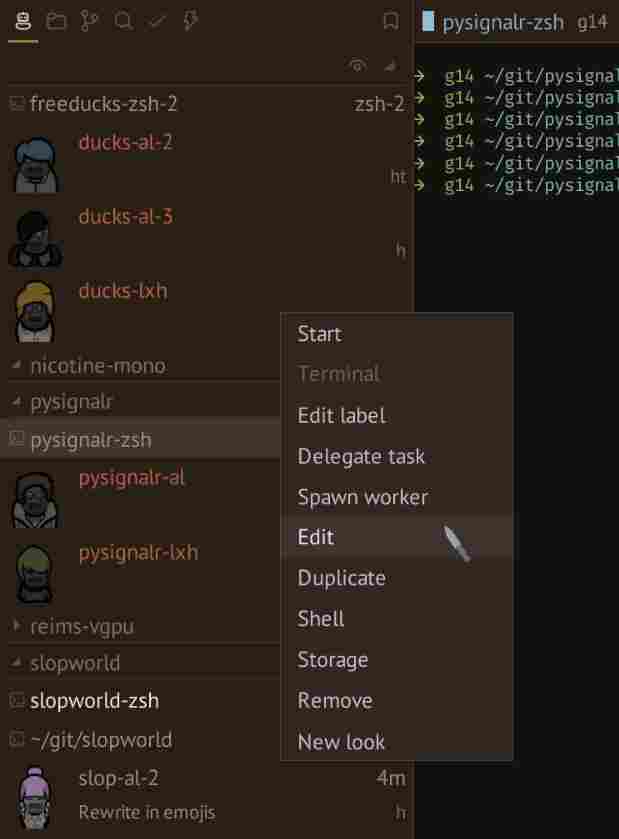
The sidebar holds your agents, files, and Git changes. Select an agent, then press T or choose Terminal from its context menu. With the terminal window open, clicking an agent switches to its terminal. See the interface tour for the other controls. If the workspace cannot connect to the daemon, follow Troubleshooting.
- Choose preferred pager and highlighter under Settings > Appearance > Code.
- Choose preferred shell and editor under Settings > Commands > Defaults.
- Visit Appearance to configure fonts, colors, UI scale, and, most importantly, mouse cursor.
Open a host shell
Select [+] > Host Shell > ~ in the sidebar.
This is a Linux shell attached to tmux. It survives closing the game unless
Stop active sessions is enabled.
The ~ tab disappears when its shell stops or exits; project shell tabs are saved.
This shell runs on the daemon host, outside the agent sandbox. In sidecar mode, it runs inside the container. See Host shells for stopping, restarting, and removing the terminal tab.
Press F12 to toggle terminal from any screen. Oh, and press ? on the main screen to show other keyboard shortcuts.
Add a project
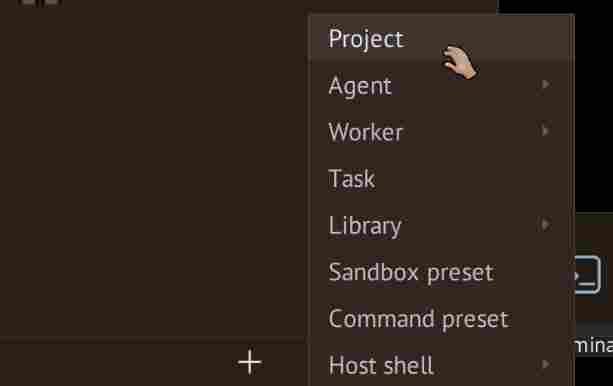
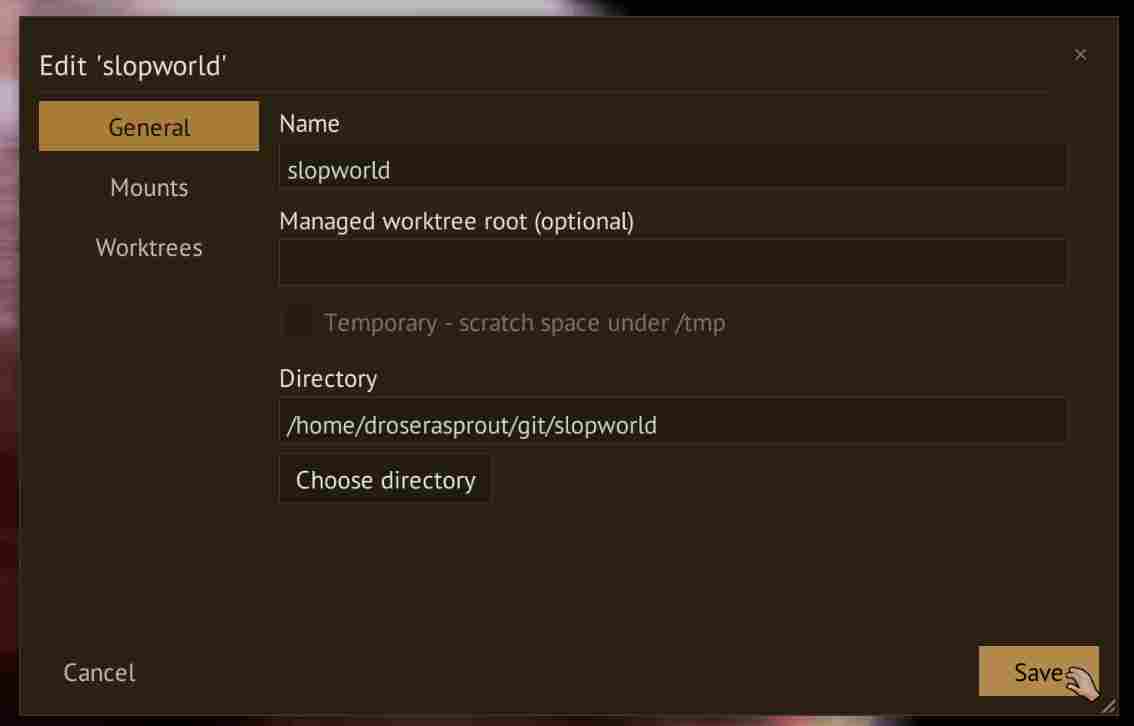
- Open [+] > Project in the sidebar.
- Give the project a name and set its directory to the absolute path of your repository on the host (or inside the container if you’re in sidecar mode).
- Save the project.
The project directory is writable by default. For additional paths or read-only access, see Configuring projects.
Create an agent
- Open [+] > Agent > Custom.
- Give the agent a name and select the project you just added.
- Leave Worktree at Main checkout. Under Command, select the preset for your installed CLI. Leave Command line override and Arguments blank for this walkthrough.
- Visit Sandbox to enable sandbox presets suitable for your project.
- Open Preview to inspect the settings and project mounts, then save.
- Select the agent in the Agents tab. If it is stopped, press S or choose Start from its context menu. Press T or choose Terminal to open its terminal.
Complete any setup prompts shown by the CLI. If startup fails, use the error message with Troubleshooting. See Configuring agents for the remaining settings.
Give it a task
Enter a small request in the agent’s terminal, for example:
Inspect this project and create a short hello-world.md describing its contents. Do not change any other files.
Interact with the CLI as you would in a normal terminal, including any approval prompts. Working and Idle reflect terminal activity; an idle terminal does not necessarily mean the task is finished.
Review the result
- When the agent reports completion, open Git in the sidebar. Click
hello-world.mdto open diff viewer. - Open Files, expand the same project and checkout. Click the .md file to open the rendered Markdown preview.
- Return to Git, right-click the file, and choose Stage.
- Right-click the checkout heading and choose Terminal (host), then run
git diff --cachedto check what will enter the commit.
See Git for the full review workflow and Files and search for browsing and editing.
Save your agent as a template
- On Agents sidebar tab, right-click your working agent and choose Edit. If you change any settings, save them and reopen the editor first.
- Select Save as template, name it
helloworlder, and select Save. - Open Library to find your new template. Click it to inspect or edit it.
The template reuses command and sandbox settings. It does not copy the agent’s conversation or credentials, or store the project’s mounts. See Templates for what is included.
Spawn a worker from the template
-
In Agents, right-click the project heading and choose Spawn worker. (You can also do it from [+] menu or command palette.)
-
Leave Caller set to You (host) and choose the new template.
-
Under Worktree, select the existing main checkout for this read-only task.
-
Enter this assignment under Task:
Read hello-world.md and compare it with the project. Report anything inaccurate or missing, and suggest one improvement. Do not edit files.
-
Leave Keep worker after exit enabled so you can inspect it afterward, then select Spawn. Its terminal opens automatically.
If you want an agent to spawn workers itself, enable delegation and choose allowed templates in Edit agent > Permissions. Spawning as You (host) can use any template in the catalog. See Agent collaboration for worker instructions and delegation.
Read the task report
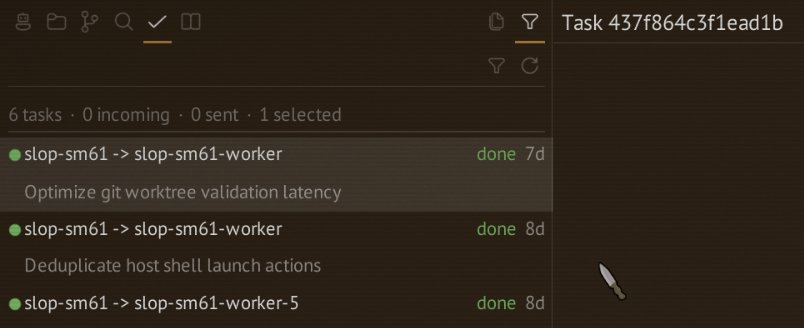
Open Tasks in the sidebar and select the assignment to read its progress and final report. Check that the task finishes; an Idle terminal alone does not confirm completion. Initial worker instructions can be set under Settings > Agents > Workers.
The retained worker remains available for inspection; stop and remove it when you are finished.
Continue
- Interface introduces file browsing, search, and the workspace controls.
- Sandboxing explains the agent’s access to your system.
- Project worktrees adds separate checkouts for parallel work.
- Library items and errands saves reusable prompts and commands.
FAQ
General
Is it a serious project or a one-shot toy?
Very serious! SlopWorld is a lightweight yet complete IDE that you can extend with your favorite Linux tools.
Is it vibecoded slop?
Yes and no.
I haven’t read every line of code in this repo. Yet I consider SlopWorld a carefully crafted piece of software. Decide for yourself.
So it’s gonna be abandoned soon?
You never know.
But as of v0.0.2, I am dogfooding hard. Haven’t opened VS Code or GNOME Terminal for many weeks of active development.
Is it stable?
No.
Not even 0.1.0. Expect the unexpected.
Does the “game” affect IDE functionality?
No.
All the “gameplay” is purely cosmetic and never interferes with your shells, agents, or whatever.
So you can safely cast a fireball at an agent (2 key). Or kill yourself. In the game.
If you find an easter egg, it’s also purely cosmetic.
Can I use SlopWorld for oldskool coding without AI agents?
You can, but it makes little sense.
RimWorld
Do I need to buy RimWorld to run this software?
Yes.
Where can I buy it?
Anywhere: Steam, GOG, or directly from Ludeon Studios.
If you want to play the vanilla game, choose Steam bc Workshop and mods are the best part. In other cases, consider DRM-free stores.
Which game builds can I use?
Use native x86_64 Linux builds.
RimWorld doesn’t have ARM64 builds for Linux.
See Requirements for supported architectures and game builds.
Can I play vanilla RimWorld after installing SlopWorld?
You can and you should!
SlopWorld uses a separate save-data profile. If its mod is loaded without that profile’s marker, it shows an error and prevents loading the colony.
SlopWorld stays visible in vanilla’s mods screen. Just keep it disabled and ignore it.
Do I need RimWorld DLCs to run SlopWorld?
No. SlopWorld uses only the core game assets.
If you play the vanilla game tho, I highly recommend buying DLCs, especially Royalty. They are fun and bring many new mechanics.
Can I mix SlopWorld with other mods?
Other mods are unsupported. New and reset profiles enable Core plus SlopWorld; normal launches preserve your existing mod list. See Profile reset to restore the intended list.
Agents and sandboxing
Should I feel safe when using SlopWorld sandboxing?
Definitely not!
Consider sandboxing a convenience, not a security feature. Like a nudge to agents: “please don’t touch my shit”.
See the Security model for limits.
OK, I feel unsafe now, thanks…
To get some peace of mind using SlopWorld, try this:
- Use narrow read-only mounts.
- Carefully read the agent preview.
- Back up your projects and other data.
How do I configure an agent’s network access?
Configure network access in the agent editor. See Network configuration for isolation and resolver behavior.
Granular access with a DNS proxy is not available yet, but it’s planned.
What are the yellow escape warnings on sandbox presets?
Read those warnings carefully before enabling a preset for an agent!
They identify host capabilities granted by a preset outside the sandbox. See Sandbox presets.
For example, the “systemd” preset gives agents access to the filesystem outside the sandbox via “systemd-run”.
What agents, shells, and pagers are supported?
You can use any tools you like with SlopWorld.
“Supported” status means the tool was somewhat tested by me, has an app/sandbox preset with defaults, and probably has some other integrations.
You can add or override app or sandbox presets from the game UI or put TOML definitions directly in SlopWorld’s config directory. See Configuring agents.
What happens when I restart an agent? Reinstall the game or the daemon?
Restarting the daemon preserves running tmux sessions. Closing the game also preserves them unless Stop active sessions is enabled. Rebooting the host or restarting/replacing the sidecar ends them.
See Session lifecycle for restart behavior and what survives closing the game or restarting the daemon.
What does Reset private state do?
See Session lifecycle for what is reset and Backup and recovery for recovery steps.
Can agents communicate with each other?
Yes. Agents can use task mailboxes and access each other’s terminals when permitted. See Agent collaboration.
Interface
How do I pass function keys or Alt combinations to the terminal?
Hold Shift to forward a reserved shortcut without Shift: Shift+F1 sends F1, and Alt+Shift+A sends Alt+A. Sending the shifted versions of those reserved shortcuts is not supported. See Keyboard shortcuts.
How do I copy text from the terminal?
You can use the standard Ctrl+Shift+C/V shortcuts or the context menu.
Ctrl+C copies selected text; without a selection, it interrupts the process. Ctrl+V pastes.
See Keyboard shortcuts.
I have created an agent template, but agents can’t spawn it as a worker
Open Edit agent > Permissions, enable Allow spawning workers, and choose which templates it may use. Delegation is disabled by default. These choices can also be saved in an agent template.
Fun
SlopWorld has an internet radio feature, but I don’t see any stations in the Jukebox
I would love to include presets for cool stations. But many of them explicitly ask not to include stream URLs in games, on websites, etc.
You gotta add them manually from “Settings > Audio” or by putting TOML in ~/.config/slopworld/jukebox.
I can recommend my favorite eclectic stations for a good coding sesh:
- Radio Paradise
- WeFunk Radio
- WFMU Freeform Radio
- Kiosk Radio
- dublab
- NTS Radio 1
- KEXP
Find stream URLs and add them to SlopWorld. Then find a donation link on each station’s website and do the right thing.
How was the soundtrack made?
100% human shit by Terry Fail (that’s also me).
- Strudel for livecoding
- Bitwig Studio for mastering
Both are awesome software I recommend.
I plan to open-source my soundtrack’s Strudel code one day.
By the way, I maintain a Strudel fork with UI/UX fixes and advanced exporting capabilities; check this out.
Misc
What about the privacy policy?
SlopWorld does not send telemetry data to anyone and never will.
SlopWorld uses network access for these features, directly or indirectly:
- Polling provider APIs for usage
- Internet radio
- Online recognition via songrec
- Spotify via ncspot
I am considering adding a button to show a simple feedback form that sends one plaintext POST with your message to my server.
I just want an IDE, without the gameplay
Enable “Eco mode” in “Settings > General”.
It stops the game simulation and replaces the main screen with a static animation.
You’ll get huge CPU savings, but RAM consumption stays roughly the same.
See Eco mode for details.
I am deeply offended by this “game”!
Enable “Granny’s Visiting” in “Settings > General”.
Linux
Install SlopWorld using your distribution’s package manager. Install the packages for the role of each machine. To run it in a container, see Sidecar mode.
Requirements
- x86_64 Linux with systemd user services and scopes.
- RimWorld 1.7 installed separately. Locate the folder containing the
RimWorldbinary. - Runtime dependencies, including Bubblewrap, passt, and tmux 3.7+. The package manager installs these.
Interactive installer
Run the installer from your terminal:
curl -fsSL https://slopworld.space/install.py | python3 -
Alternatively, download install.py or the installer from the latest release, then run:
python3 install.py
The installer requires Python 3.10 or newer, with no additional Python packages.
If Python is missing, install python3 with apt or dnf, or python with pacman.
It selects Debian/Ubuntu, Fedora, or Arch packages using the distribution identity
and ancestry, including derivatives such as CachyOS. For unrecognized distributions,
it detects apt, dnf, or pacman; ambiguous detection stops with an error. Package
library requirements and distribution-specific prerequisites below still apply.
Use Up/Down to move between component checkboxes and Space to toggle them.
Press Enter to apply changes, or Q/Esc to cancel. If terminal controls are
unavailable, the installer falls back to numbered toggles.
Installed components are preselected and their versions are shown alongside the
target release. Unchecking an installed component uninstalls it. Selecting
slopd also selects its required slopctl package. On ARM64, only slopcar is
available, on Debian/Ubuntu and Fedora.
The installer downloads the selected packages and checksums from one GitHub release
into a private directory under /tmp, verifies every package, and invokes the
system package manager. Run it as your normal user; it uses sudo for installation.
The package manager shows its transaction and resolves runtime dependencies.
Temporary downloads are removed on completion, failure, or cancellation.
Checksums detect damaged downloads; they do not independently establish provenance.
See release verification for attestation checks.
Run it again to update selected components. Add --version VERSION to an
explicit --install command to select a specific stable release. Installation does not attach the mod or start
services; continue with Attach the mod and launch.
Without the menu
Explicit actions skip the menu and leave unmentioned components unchanged:
python3 install.py --install slopworld slopd
python3 install.py --remove slopd slopctl
python3 install.py --install slopcar --remove slopd
--install installs or updates; selecting slopd also installs/updates slopctl.
To remove slopctl while slopd is installed, remove both. Removal preserves user
configuration and does not request dependency cleanup or purge. Removing packages
does not detach an already attached game mod.
Running without arguments opens the menu. Any arguments select noninteractive
mode and require --install or --remove (except --help). Package-manager
prompts are accepted automatically; existing configuration is retained. Sudo uses
-n and fails if authentication is needed, so authenticate beforehand with
sudo -v or run with sufficient privileges. --no-tui is an optional explicit
marker for this mode. Removal-only commands do not contact GitHub. Mixed commands verify and
install downloads before removing packages. These are separate transactions: if
removal fails, successful installations remain applied.
Get binaries
Install a Linux binary package from the release downloads.
| Package | Contents | Install on |
|---|---|---|
slopworld | Game launcher, mod, assets and OST | Game desktop |
slopd | Daemon and user service; requires slopctl | Native agent server |
slopctl | CLI for local or remote daemons | Server, administration machine, or CI |
slopcar | Container launcher | Sidecar host |
For a local native setup, install slopworld, slopd, and slopctl together.
For a remote game client, install only slopworld. For a sidecar game host,
install slopworld and slopcar; slopctl is optional on that host.
The commands below install the local native setup.
The commands below require wget and use version 0.1.0.
Arch Linux
Download and install the Arch packages:
for package in slopworld slopd slopctl; do
  wget "https://github.com/droserasprout/slopworld/releases/download/v0.1.0/${package}-0.1.0-x86_64.pkg.tar.zst"
done
sudo pacman -U ./slopworld-0.1.0-x86_64.pkg.tar.zst ./slopd-0.1.0-x86_64.pkg.tar.zst ./slopctl-0.1.0-x86_64.pkg.tar.zst
Ubuntu 26.10+
Download and install the deb packages:
for package in slopworld slopd slopctl; do
  wget "https://github.com/droserasprout/slopworld/releases/download/v0.1.0/${package}-0.1.0-amd64.deb"
done
sudo apt install ./slopworld-0.1.0-amd64.deb ./slopd-0.1.0-amd64.deb ./slopctl-0.1.0-amd64.deb
Older releases don’t have tmux 3.7 in repositories or backports.
Debian 13+
Download and install the deb packages:
echo 'deb https://deb.debian.org/debian trixie-backports main' | sudo tee /etc/apt/sources.list.d/backports.list
sudo apt update
sudo apt install tmux/trixie-backports

for package in slopworld slopd slopctl; do
  wget "https://github.com/droserasprout/slopworld/releases/download/v0.1.0/${package}-0.1.0-amd64.deb"
done
sudo apt install ./slopworld-0.1.0-amd64.deb ./slopd-0.1.0-amd64.deb ./slopctl-0.1.0-amd64.deb
Fedora
Download and install the Fedora packages:
for package in slopworld slopd slopctl; do
  wget "https://github.com/droserasprout/slopworld/releases/download/v0.1.0/${package}-0.1.0-x86_64.rpm"
done
sudo dnf install ./slopworld-0.1.0-x86_64.rpm ./slopd-0.1.0-x86_64.rpm ./slopctl-0.1.0-x86_64.rpm
The RPM requires Fedora 43 library versions. To build for another Fedora release, see Fedora packages.
Optional integrations
Packages list these as optional dependencies (optdepends on Arch, Suggests
on Debian and Fedora). Install the tools for the features you use:
| Feature | Arch | Debian/Ubuntu | Fedora |
|---|---|---|---|
| Preferred pager | moor | moor | not packaged |
| Alternative highlighters | highlight, python-pygments | highlight, python3-pygments | highlight, python3-pygments |
| Desktop application associations | glib2 | libglib2.0-bin | glib2 |
| Native Open With chooser | python-gobject, gtk3 | python3-gi, gir1.2-gtk-3.0 | python3-gobject, gtk3 |
| Portal chooser fallback | xdg-desktop-portal | same | same |
| X11 clipboard fallback | xsel | same | same |
| Process inspection fallback | procps-ng | procps | procps-ng |
| Spotify playback | ncspot | not packaged | not packaged |
| Song recognition | songrec | not packaged | not packaged |
Attach the mod and launch
Run these commands as your normal user. Replace the game path with your RimWorld installation directory:
# Install the mod
RIMWORLD=/path/to/RimWorld/game
slopworld mod install --game "$RIMWORLD"

# Start the daemon
systemctl --user daemon-reload
systemctl --user enable --now slopd.service

# Launch SlopWorld
slopworld
The installer replaces the existing SlopWorld mod and saves the game directory
as the launcher default. The source defaults to /usr/share/slopworld/SlopWorld;
use --source DIR for another mod tree.
Always launch with slopworld. The mod uses a separate
game profile; keep it disabled in your vanilla profile.
Remote connection
Install slopd and slopctl on the server, and slopworld on the client.
Attach the mod to the client’s RimWorld installation as above. The remote server runs slopd and your agents; the client
runs the game. This example uses SSH host tank and server IP 192.168.1.10.
Replace them with your server’s hostname and reachable IP address.
On the remote server, start the daemon and set its listener address:
# On remote server
systemctl --user daemon-reload
systemctl --user enable --now slopd.service

slopctl config set daemon.bind 192.168.1.10:7717
systemctl --user restart slopd.service
On the server, run slopctl paths endpoint to locate the endpoint descriptor.
Read its token field and enter that value at the client’s hidden key prompt below.
See Paths and files if you use custom configuration roots.
On the client, register the daemon:
slopworld connect tank http://192.168.1.10:7717
slopworld --endpoint tank
The first command saves the connection as endpoints/tank.toml. Launching with
--endpoint tank creates its separate profiles/tank game profile.
Use slopworld endpoints to list saved peers.
Standalone CLI
Install only slopctl on an administration machine or CI runner. Set SLOPD_URL
and SLOPD_TOKEN for the remote daemon, then use commands such as slopctl status
and slopctl task wait ID. No local daemon or game is required. Local log commands
still read that machine’s logs.
Next steps
Continue with Quickstart to prepare your agent CLI, add a project, and run your first task.
See Updates and uninstallation to update or remove SlopWorld.
Sidecar mode
Warning
Sidecar mode is not well tested and has many limitations. Consider a remote connection instead.
A sidecar runs slopd, tmux, and the agent sandboxes in a Docker container. The game
remains on the host and connects to the sidecar over a loopback port.
Sidecar mode disables desktop file opening, daemon audio (radio and Spotify), and per-session resource limits. The bundled soundtrack still plays in the game.
The game host needs the slopworld client package and slopcar launcher package.
It does not need the native slopd package; the image contains the daemon and CLI.
Install slopctl separately if you want CLI access from the host.
Install the host launcher
The minimum supported host-library baseline is Debian 13 (Trixie). Use a matching distro package on a host that satisfies its declared library dependencies; older-library systems are outside the support target. Fedora packages target Fedora 43, and Arch packages target current Arch Linux.
You also need access to a running local Docker engine. The host kernel must allow
the nested sandbox operations checked by slopcar doctor. The container supplies
tmux, Bubblewrap, and pasta; those do not impose native package requirements on the host.
The slopcar launcher includes its seccomp policy and requires no Rust, Python,
or source checkout. These requirements cover only the container launcher;
game connection below also requires a host source build.
Download the separate slopcar package from GitHub Releases. Debian 13-compatible and Fedora packages are available for amd64/x86_64 and arm64/aarch64; the Arch package is x86_64. Install the matching package with your package manager:
sudo apt install ./slopcar-0.1.0-amd64.deb
# Or on Fedora:
sudo dnf install ./slopcar-0.1.0-x86_64.rpm
# Or on Arch:
sudo pacman -U ./slopcar-0.1.0-x86_64.pkg.tar.zst
The package contains the launcher, completions, and notices. It depends on Docker
and system libraries. It does not install the game mod or a daemon service on the host.
Docker must be running and accessible to your ordinary user; run slopcar without sudo.
From source
For source installs, use just sidecar-install. This requires Rust, just, uv,
and a checkout. Build a local image explicitly when needed:
export SLOPCAR_IMAGE=slopcar:local
just sidecar-image
Start the sidecar
By default, the launcher selects ghcr.io/droserasprout/slopcar:<launcher version>.
doctor and a fresh start pull the selected image only when it is missing locally.
They never rebuild or refresh an installed image. SLOPCAR_IMAGE selects a custom image.
Check the container’s sandbox runtime before starting:
slopcar doctor
Pass --workspace for each project that agents may access. Use absolute paths.
The container mounts each workspace at the same path. The game and daemon exchange workspace paths.
slopcar start --workspace "/absolute/path/to/project"
The installed launcher embeds its seccomp profile and runtime commands do not
require a checkout. slopcar build --source /path/to/slopworld builds an image
from an explicit checkout; without --source, it uses the current directory.
Local builds require a checkout and are always explicit.
Set SLOPCAR_IMAGE to select an image, including one already pulled from a registry.
Before running agents, extend the standard image with your chosen Linux agent
CLIs and their dependencies, then set SLOPCAR_IMAGE to that custom image.
Install those tools when building the image so they survive container replacement.
The launcher supplies PUID/PGID from your host user.
The entrypoint starts as root to configure the slop account, then drops privileges
before starting the daemon. Workspace and credential ownership stays unchanged.
The worker writes endpoints/local.toml inside its config directory.
The default host location is <CONFIG>/sidecar/endpoints/local.toml.
It publishes only its configured loopback port (7718 by default).
Add more --workspace options when needed.
Add credentials to the initial start command with
--credential-ro SOURCE=TARGET or --credential-rw SOURCE=TARGET.
For Codex, mount $HOME/.codex/auth.json at /home/slop/.codex/auth.json read-write so
refresh-token updates remain shared with the host.
Claude’s rotating $HOME/.claude/.credentials.json needs a read-write mount at
/home/slop/.claude/.credentials.json.
Workspace and credential sources cannot be the filesystem root, the entire home folder, or paths overlapping sidecar configuration or session state. Credential mounts also protect container configuration/state targets and reject Docker socket or configuration sources. See the technical README for the detailed mount constraints.
Game connection
This source workflow requires a checkout and the host build prerequisites, including the .NET SDK and Protobuf compiler. It builds the mod and the native daemon/CLI/launcher crate, even though the daemon will run in the container.
Build and install the mod before launching. Run these commands from the repository root, using the same game directory for installation and launch:
RIMWORLD=/path/to/RimWorld/game just install-mod
install-mod builds the mod and launcher and attaches the mod to the game.
Then launch with the sidecar’s endpoint and profile:
RIMWORLD=/path/to/RimWorld/game just sidecar-run
The sidecar uses a separate game profile from the default local connection. See Paths and files for overrides and Game profiles for profile behavior.
Start the worker before running the game. install-mod builds the CLI in the
checkout without installing it into PATH. From the repository root, connect with:
slopd/target/debug/slopctl --sidecar status
Use slopd/target/release/slopctl if you built with BUILD=release.
SLOPD_ENDPOINT can select an explicit descriptor in either mode.
Lifecycle
slopcar status
slopcar logs
slopcar stop
slopcar restart
stop, restart, and container removal end all running agent and host-shell
processes, including tmux. Configuration, private agent state, and mounted project
files remain on disk. See Session lifecycle for autostart
and conversation resume.
start with no options reuses an existing stopped container. After you rebuild the
image or change mounts or resource limits, remove the container with
slopcar rm, then repeat the original start command, including its
directory overrides and mounts. Container removal preserves those directories.
The default port 7718 allows a local daemon on 7717 to run alongside the sidecar.
--port (or SLOPCAR_PORT) sets the host port and daemon bind port when the worker first creates its configuration.
A different port requires a new configuration directory.
The launcher rejects a configuration directory that specifies another port.
For container security flags and nested-namespace constraints, see the technical README.
Host storage uses SLOPD_CONFIG_ROOT, SLOPD_DATA, and SLOPD_CACHE in both
standalone and recipe workflows. Set the same environment when starting the
sidecar and launching clients. See Paths and files
for host layout and fixed container mount targets, and
Environment variables
for container controls. slopcar paths endpoint prints the resolved descriptor
path without requiring Docker.
Interface
SlopWorld adds a coding workspace to RimWorld. Its main parts are the sidebar, active terminal or content view, and top bar.
Sidebar
On the map, select an agent and press T or choose Terminal from its context menu. With the terminal window open, clicking a session switches to it. Drag the grip to resize the sidebar. Use the sidebar to switch sessions and browse project work. Session context menus include access to an agent shell. Tasks track assignments and progress; Library keeps reusable prompts, commands, and templates.
The shared Project filter scopes project-oriented views. Tasks is global and Library has an independent filter. See Browse checkouts for Main and worktree selection. Use + to add workspace items and View: Toggle Sidebar in the palette to hide the panel.
The palette’s Add… command opens the same choices as +. Type to filter each level, use Up/Down to select, and press Enter to open a submenu or launch an action. Escape returns one level with the previous search and selection preserved; Backspace also returns when the search is empty. The prompt shows the current path, such as Add › Agent.
For step-by-step procedures, see Files and search and Git.
Terminal
The active view shows a session terminal or content such as Settings and readers. See Keyboard and mouse shortcuts for input, selection, copy, paste, and help.
See Input and panes for terminal interaction, split panes, and shell choices.
Top bar
The top bar shows provider usage, the clock, and contextual session/title/state or agent-count/daemon status. The gear opens Settings. Jukebox and computer-core buttons appear when enabled and their map objects exist.
Settings
See Settings for display behavior and when changes apply. Eco mode pauses the game simulation while agents continue running.
Configuring projects
A project gives your agents a folder to work in. It also controls which extra files and folders they can access. All agents assigned to the project share these settings.
Project setup
- Choose Add project in the sidebar or command palette.
- On the General tab, enter a name and choose the project’s Directory. Use an existing folder on the machine running the daemon. In sidecar mode, that folder must be available inside the container.
- Select Save. You can now select this project when adding an agent.
Agents can read and change files in the project directory by default. Use the Mounts tab to change access, share additional paths, or set up build caches; see Project mounts.
The Worktrees tab manages separate checkouts of a Git repository. Save the project first, then follow Project worktrees.
Scratch projects
Select Temporary - scratch space under /tmp when creating the project.
SlopWorld chooses a directory under /tmp/slopworld. The machine’s /tmp
cleanup policy determines how long its files remain.
You cannot switch an existing project between temporary and regular storage.
Project mounts
Mounts control which files and folders a project’s agents can access. Edit them on the project’s Mounts tab, then restart running agents to apply changes.
The first row controls the project directory. It defaults to Read-write; choose Read-only to prevent agents from changing its files. This row cannot be removed.
Additional paths
- Select Add path.
- Set From to an existing file or folder’s absolute path on the daemon’s
machine, such as
/home/alex/shared-docs. - Set To to where agents should see it. An absolute path such as
/mnt/docsstays fixed; a relative path such asdocsis inside the agent’s checkout. - Choose Read-only or Read-write, then Save.
Add project mounts another project’s directory at its original path. Its additional mounts are not copied, and later directory changes do not update this mount. Select × to remove a mount. Use the agent editor’s Preview tab to check access.
Shared cache mounts
A Cache mount shares build files across worktrees.
The tool must support sharing that cache across different source checkouts and
concurrent builds. For Rust, keep target directories separate per worktree.
Use rust-cache for shared downloads, and opt into rust-sccache for shared
compiler results. Install sccache on the host before starting sessions with
rust-sccache. SlopWorld creates and mounts ~/.cache/sccache automatically. It sets RUSTC_WRAPPER=sccache; builds fail
if the executable is missing.
Cache setup
- Select Add path and choose Cache.
- Leave From blank for managed storage, or enter an absolute cache directory outside the project and its worktrees. SlopWorld creates it if needed.
- Set To to the cache directory required by the tool.
- Select Save and restart running agents.
For a relative To path, saving links the cache into every checkout, including main and future worktrees. Host shells and agents use the same cached files.
An absolute To path mounts the cache only inside the sandbox, without checkout links. Keep it outside the original checkout when using worktrees. Sidecar mode requires an absolute destination.
Cache conflicts
Existing files block creation of a cache link. Move them into the cache directory shown in the error, remove the empty destination directory, and save again.
For a missing cache link, save the mounts again. If a link points elsewhere, restore its original target first. Agents cannot start until required links are correct.
Cache storage and removal
Settings > Storage shows cache paths and sizes. To stop sharing a cache, remove its mount row and save. SlopWorld removes its checkout links and keeps the cached files. Removing projects, workers, or worktrees also keeps cache data.
Project worktrees
Worktrees let agents use separate checkouts of the same Git repository. Several agents can share a worktree. Completing a task or removing a worker leaves its worktree in place.
Setup
Open the project’s Worktrees tab. Select Create for a new checkout from a committed revision, or Add to register an existing checkout of the same repository. The original checkout appears as main.
New worktrees start on a branch with the same name. Choose an unused, valid Git branch name without slashes. Uncommitted changes stay in the original checkout.
Choose a worktree in Spawn worker or in agent settings. Stop an agent before changing its worktree. Select Terminal in the worktree list to open a shell in that checkout.
Add .worktrees/ to the project’s Git ignore rules to keep nested checkouts out
of commits. See Paths and files for storage locations.
Renaming
For a ready managed worktree, move or remove attached sessions, then select Rename. Renaming moves its directory; its branch keeps its name. External checkouts cannot be renamed here.
Removal
Move or remove all attached sessions, including stopped workers and host shell tabs, then select × on the worktree row. You cannot remove main.
A managed checkout must have no uncommitted changes or extra files, including ignored build output. Its current commit must belong to a retained local branch, and its cache links must be intact. Resolve any reported conflict and try again. Branches and shared cache data are kept.
For an external checkout, removal only unregisters it from SlopWorld; its files and Git registration stay in place. Remove registered worktrees before removing the project.
Browsing
Use the Project filter in Files, Git, and Search to choose which checkouts to show. Main starts enabled; enable new worktrees as needed. These choices do not change agents’ assigned checkouts.
Related guides
- Project mounts covers shared build caches.
- Using slopctl covers worktree and worker commands.
- Interface covers browsing and checkout filters.
Files and search
Use Files to browse a checkout and Search to find text across checkouts. Both use the shared Project filter. Enable the Main checkout or worktrees you want to inspect; see Browse several checkouts. Changing this filter does not move an agent to another checkout.
Browse and open files
- Open Files, expand a project and checkout, then expand its folders.
- Right-click a file and choose View to read it or Edit to open a text editor.
- For Markdown, use View for the rendered reader or View in pager for source.
Images open in the native reader. Text pagers and editors run on the daemon host; they do not use an agent’s private state. Configure the editor under Settings > Commands > Defaults, and the pager and syntax highlighter under Settings > Appearance > Code.
Where desktop integration is available, Open in lists associated applications. Choose Other to select another application. See Keyboard and mouse for reader navigation.
Rendered Markdown can display local resources within the project scope, but does not load remote images or images embedded as data URLs.
Preview tabs
Press F9 or click the stacked-documents button before the Project filter to show or hide Open files across sidebar tabs. Drag its divider to resize it. Hiding the pane keeps your files open; opening a file reveals it again.
Opening a file uses a replaceable preview. Double-click its sidebar header to pin it before opening another file; middle-click the header to close it. Files and Git share readers, while Search has its own. Source readers refresh when file changes are detected, including pinned readers. For updated diffs, see Change review.
Manage files
A folder’s context menu offers New file, New folder, and Shell here. File and folder menus offer Rename, Remove, and path-copying actions. These actions affect the selected checkout. Open Git afterward to review changes to tracked files.
For reusable commands on a selected path, create a Library file action.
Search workspace text
- Enable the checkouts you want in the Project filter and open Search.
- Enter a query. Click case for case-sensitive matching, word for whole words, regex for a regular expression, or gitignd to include files ignored by Git. All options start off; their text and underline highlight when selected.
- Toggle inc or exc to show include or exclude path filters. Enter a glob
such as
*.cs,src/**, or*.{cs,rs}, or a directory name such asnotesto search its contents at any depth. Exclusions win when both filters match. Toggling either filter applies it immediately when the query is non-empty. Turning a filter off keeps its text but leaves it out of the search. Include filters still respect the gitignd option and hidden-file setting. - Press Enter in any search field or click › to submit.
- Expand the project, checkout, and file groups, then select a match to read it. Use its context menu to edit the file.
Editing the query does not search until you submit it. Changing the checkout filter reruns the last submitted query and options. The groups distinguish files with the same relative path in different checkouts.
Incomplete results
Directory listings and search results are bounded. If the view reports truncation, the visible entries are only part of the result. Narrow the search query or select fewer checkouts. Use a host shell when you need a complete listing or a more specialized search.
Git
The Git tab shows changes in the checkouts enabled by the shared Project filter. Before reviewing an agent’s work, select the checkout that agent used. See Project worktrees for filtering.
Change review
- Wait for the agent to report completion. Idle only describes terminal activity.
- Open Git and expand the checkout. Its heading’s context menu offers Refresh.
- Right-click a changed file and choose Diff. Use Edit for corrections.
- Review new, untracked files individually: Diff all does not include them.
Diffs show current file contents against HEAD, including staged and unstaged changes. They are not a preview of only the next commit and do not refresh automatically. If an agent keeps editing, use the checkout’s Refresh action and choose Diff again before staging.
Git actions and diff pagers run on the daemon host in the selected checkout. If line counts are unavailable or results are truncated, do not treat the displayed totals as a complete review. Open Terminal (host) from the checkout heading for further inspection.
Staging and commits
- Right-click each file or folder you want to include and choose Stage. The checkout heading also offers Stage all.
- Use Unstage or Unstage all to remove changes from the index while keeping working files.
- To inspect exactly what is staged, open Terminal (host) and run
git diff --cached. - Open the checkout heading’s context menu, choose Commit staged changes, enter a message, and select Commit.
Only staged changes enter the commit. If you edit a file after staging it, stage it again to include the new edits. When a commit fails, read the reported error and resolve it in that checkout’s host shell before retrying.
Worktree integration and cleanup
A worker finishing does not commit, merge, or remove its worktree. Review and commit there first. Use a terminal for merging or cherry-picking into another branch, then follow Remove a worktree when the checkout is no longer needed.
Planner
Planner is your manual todo.txt backlog. Agent Tasks carry assignments and progress reports; Library Timers schedule work. Planner entries can link to Tasks and Workers, but due dates alone do not start work.
Add and edit tasks
Open Planner with the chess table button beside Settings or the chess table on the map. Use Add a task for quick entry, check a task to complete it, and select a row to edit its details. Quick-add and checkboxes save immediately. The details pane uses Save changes and Discard edits.
Use projects (+project) and contexts (@context) to group work for filtering
and search. The Projects dropdown accepts multiple TODO or configured projects. Smaller windows
use filter menus and open details separately.
Use the Markdown field beneath the title for notes, checklists, and code blocks. Preview renders the draft. Save changes saves the task and all edited descriptions; failed saves retain drafts for retry. Discard restores the last saved values. Drafts survive task and view changes within the mod session; save before quitting.
Tasks | Raw switches between the task list and its underlying todo.txt text. Field edits preserve unknown metadata. Refresh reloads external TODO edits and links; Reload description reads external Markdown edits. On a conflict, copy the affected draft before discarding and reloading.
Link tasks and workers
Links lists associated Tasks and Workers, with live status and progress. Click a Task to open its details or a Worker to focus its terminal. Link Task… and Link Worker… attach existing items; Remove detaches them without deleting, canceling, or stopping them. Worker outcomes do not change the Planner checkbox.
Save edits before choosing Spawn worker…. Select a project, then use the worker dialog, prefilled with the task title and saved description. Spawning links the new Task and Worker even if startup fails. You can remove old links and spawn another worker. To cancel an unfinished task, open its link and choose Cancel. Cancellation prevents further task updates but leaves the worker process running.
Storage and recovery
The daemon stores TODO.txt (up to 64 KiB) in its data directory, normally
~/.local/share/slopworld/. Saving assigns each task a stable sw-id:; preserve it and
any sw-task: metadata when editing Raw. Agents report through Tasks and cannot edit
the backlog through the Planner API.
Descriptions live in planner/descriptions/<sw-id>.md (up to 1 MiB each); links live in
planner/links/<sw-id>.json. Renaming, moving, or completing a task preserves its description.
Deleting a TODO entry keeps its description and linked worker task. Restoring the same
sw-id: reconnects the description; copying a task requires a new ID and does not copy
its description.
Include these files in your backup.
Library items and errands
Use the Library to save prompts and commands you run repeatedly. Errands open temporary sessions; prompts can also insert text into an existing terminal; file actions run against a selected path. Timers send prompts, create workers, or run shell scripts on a schedule.
Prompt errands
Use + > Library to create a prompt named Explain this project. Enter:
Read the README and summarize how to build and test this project. Do not edit files.
Choose Run using > Agent template and select a template. Set Where it runs to One project, named below, select the project, then save. In Library, right-click the entry and select Run. A temporary agent terminal opens with that prompt. Read its response there. Set Where it runs to Ask me every time to reuse one entry across projects.
Choose Run using > Reusable text only for prompts used by terminals, Timers, or agent startup without an errand’s Run action.
Shell errands
Create a shell entry named Working tree status with command line git status --short.
Choose an existing Git project and Run using > Host, then save and Run it
from Library. The command runs in that project’s directory in a temporary terminal.
Use the same pattern for a project’s build or test command.
Where errands run
Choose the project and execution settings before starting an errand. The project supplies its working directory and mounts; a temporary project starts empty.
Choose Host only when the errand should run outside the sandbox. Choose an agent template to give it that template’s execution settings and sandbox access.
Shell errands keep their shell executable. Prompt errands use the template’s command unless you supply an override.
Each run copies the current template once and gets a fresh private identity. Later template edits or deletion do not change an existing errand. Errands do not autostart or auto-resume.
Prompts in terminals
Create a prompt with Run using > Reusable text only named Review instructions with text such as:
Review the changes for correctness and missing tests. Report findings with file paths.
Save it, open an agent terminal, and choose it under Prompts in the terminal’s context menu. This pastes the text without pressing Enter, so you can edit it before submitting. All prompts appear here, including prompts configured to run as errands.
File actions
Create a file action named Count lines with command wc -l {{ absolute_path }}
and mode Show result. Save it, then right-click a text file in Files and
choose the entry under File actions to see its line count.
Actions also appear in Git and Search context menus. They run on the daemon
host, outside the agent’s sandbox. Commands can use {{ absolute_path }} and
{{ relative_path }} for the selected path.
Choose how to present results based on whether the command needs interaction. Leave the mode at Ask to decide each time; that choice is not saved.
Library management
A user entry replaces the supplied entry with the same name. The Library also stores agent templates. Manage command presets in Settings > Commands.
Timers
Create + > Library > Timer using a saved prompt or shell script. Send a prompt to an existing agent when it needs that conversation’s context; spawn a worker when each occurrence should start a separate task.
Timer prompts resolve {{ random_tip }} from the shared loading-tip catalog even
while the game is closed. These unattended draws use unmarked tips.
Worker actions create a new one-shot, host-owned worker for each occurrence. The selected Prompt supplies its task, with placeholders resolved for the new worker. Shell actions use the selected item’s execution settings and saved project or temporary location. Set a saved location on scripts configured to Ask before using them with a Timer.
Choose a calendar schedule for work tied to local clock time. Use a delay or interval for work tied to daemon startup or timer activation.
Durations accept s, min, h, and d, including combinations such as 1h 30min.
Use a duration between one second and 366 days. The first interval occurs after a
full duration. Activation delays and intervals restart when you enable or change
the Timer, or restart the daemon. A startup timer enabled after its startup deadline
runs on the next scheduler check. One-shot timers remain enabled with status Elapsed
after their attempt; disable and enable them to arm them again.
For a Calendar timer, enter * for every day, Mon..Fri for weekdays, or a list
such as Mon,Wed,Fri, and a 24-hour time such as 09:00. The time zone defaults to
your Settings selection, resolving Auto to your computer’s named zone. The timer
saves that explicit zone, including its daylight-saving rules, so a remote daemon
or later Settings changes cannot shift the schedule. A nonexistent local time during
a daylight-saving transition is skipped; a repeated time fires only at its earlier
instant. Preview schedule shows upcoming triggers as if activated now, displayed
in your Settings time zone. It does not save or run the Timer.
Enable the Timer to schedule it. Its Library menu offers Enable, Disable, and Run now. Run now executes the action even when disabled and leaves the scheduled deadline unchanged. Check its details for the last attempt, outcome, and next occurrence.
The daemon schedules Timers independently of the game, checking at approximately one-second resolution. Calendar schedules use wall time; delays and intervals use elapsed monotonic time, unaffected by system clock corrections. Prompt actions skip busy, stopped, shell, and unready targets. Missed calendar minutes are not replayed after downtime; relative timers start fresh after daemon restart. A delayed interval check makes at most one attempt and preserves its original cadence. Multiple Timers due in one scheduler pass submit at most one prompt to the same agent.
Prompt and shell script edits affect the next occurrence without restarting the Timer; Timers reference live Library items. Missing prompts, templates, scripts, projects, or targets withhold the action. Renaming an agent preserves its Timers; deleting and recreating it with the same name does not. Submission means the input was queued, not accepted by the agent. Uncertain actions are not retried.
Edit a supplied Library item to create a personal override. Deleting that override restores the supplied default. To pause a supplied Timer, disable it instead.
Command presets
A command preset tells SlopWorld which installed CLI to run and supplies its configuration paths, initial state, and environment. Manage presets in Settings > Commands > Apps.
Choose a command
Settings > Commands > Defaults separates Agent, Agent shell, and
User shell defaults. The agent shell guide
explains the distinction between the two shell settings.
When configuring an agent, choose a named command preset
to include its CLI-specific configuration. An agent with only a raw cmd still
gets a sandbox, but none of that configuration.
Custom presets
User app definitions go in ~/.config/slopworld/app_presets/ by default.
A definition replaces the supplied app with the same name.
See Paths and files for directory overrides.
The required kind field determines where a preset appears in Settings:
| Kind | List |
|---|---|
agent | Agent commands |
shell | Shell commands |
Sandbox access
Command presets identify the software to run. Sandbox presets control the host files and tools it can access. See Shell configuration for host dotfiles and Sandbox presets for mount rules and additional tools.
“Gameplay”
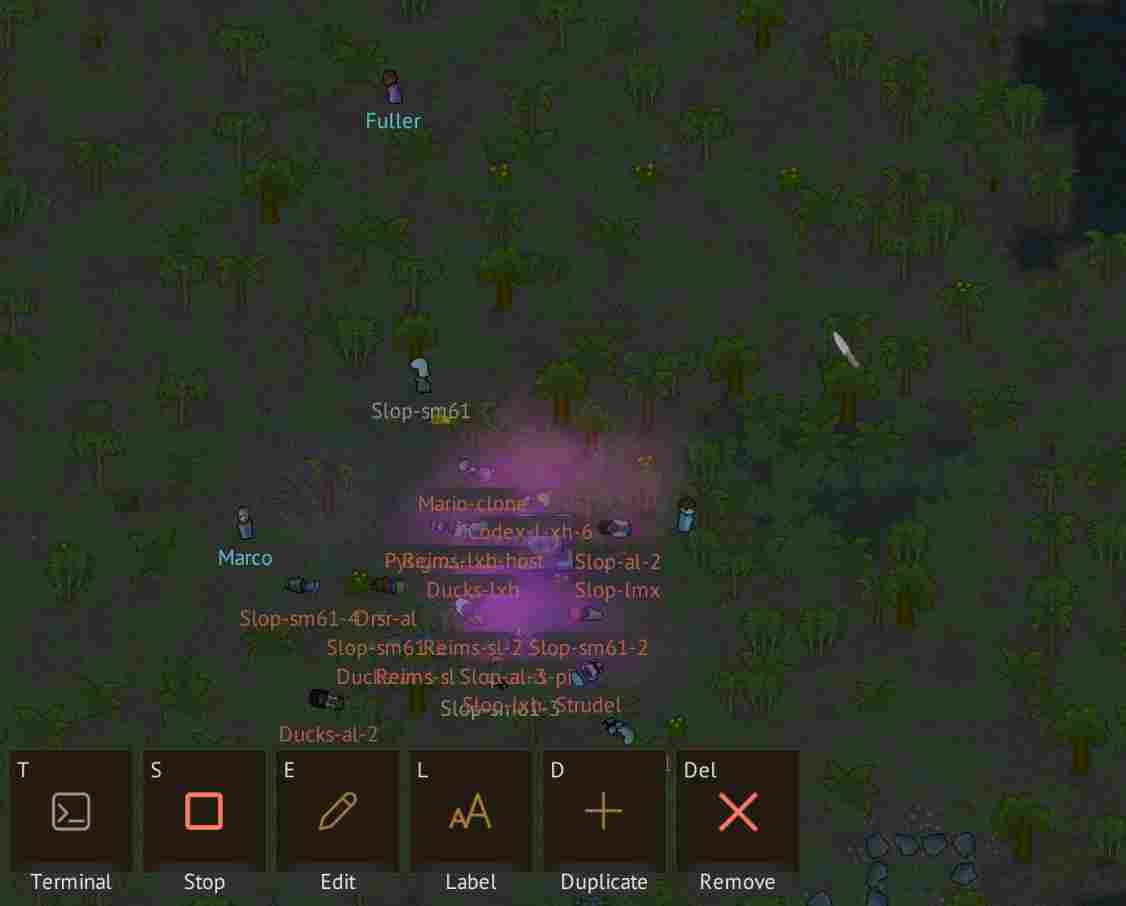
The colony reflects sessions managed by the daemon. Configured agents appear as pawns; workers and temporary errands remain in the sidebar. Host shells have no agent pawn.
Agents
Select an agent on the map and press T to open its terminal. The selected agent’s controls also let you start or stop, edit, duplicate, label, or delete it. See Agent controls for the default keys and Session lifecycle for what each action preserves.
Agents can roll a red clown nose when created or when New look rerolls their appearance. The result is saved with the colony.
Construction
Agents with Working status receive construction work. Interrupted construction keeps its progress. Working and Idle describe terminal activity, so construction is not a measure of task completion. Review the CLI’s result and project changes to check the actual work.
Player controls
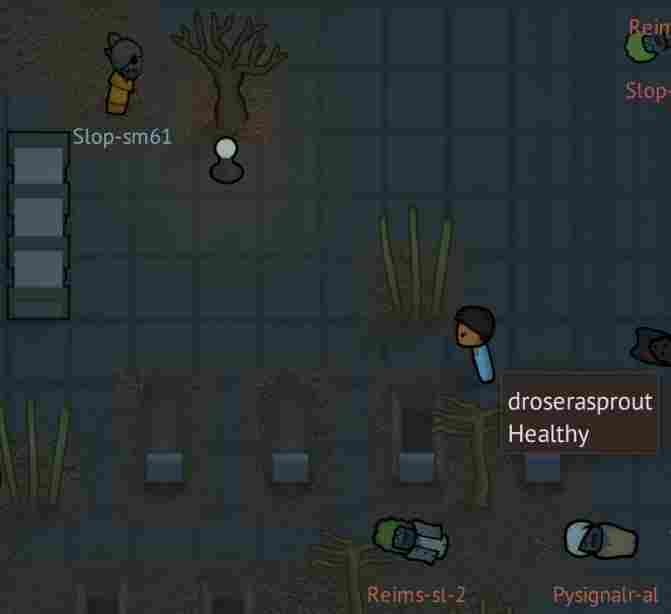
The player pawn can move, cast Fireball, Rejuvenate, teleport, and use Cat whistle. See Player controls for the key bindings.
Cat aura
Click the cat to heal it and restore its surroundings. Each accepted pat adds ten seconds of aura time; repeated pats stack into minutes. The charged aura follows the cat, protecting nearby cells from plague and fire spread while healing nearby pawns and clearing fire and filth once per simulation second. Pats less than 0.4 seconds apart count only once. Each accepted pat also has a 10% chance to turn one nearby empty player-owned grave into a rose, where planting is possible. Occupied graves are left alone. Charge pauses with the simulation, including Eco mode, and resets when the colony reloads.
Eco mode
Eco mode pauses the colony simulation and hides the map while the daemon and agents continue running. The sidebar and terminal interface remain available; map interaction is disabled while the map is hidden. Colony scenes temporarily suspend Eco rest.
Periodic colony autosaves use simulation time, so they pause during Eco rest. Agent output and project edits continue independently of colony saves. See Backup and recovery for preserving the whole workspace.
The frame limiter and VSync are separate controls under Settings > Display. See Display for frame limits and VSync.
Saves
SlopWorld creates a colony on first launch and loads the latest saved colony on later launches. Colony saves and agent processes have separate lifetimes: closing the game leaves agents running while their daemon host remains available, unless Stop active sessions is selected under Settings > General > Game > On exit. See Saves and profiles and Backup and recovery.
Input and panes
On the map, clicking an agent in the Agents sidebar selects its pawn. Press T or choose Terminal from the session’s context menu to open its terminal. With the terminal window open, clicking a sidebar session switches to it. F12 opens or closes the terminal window. Closing the window leaves the session running; use the session’s Stop action to end its process.
Input
Type into the terminal to interact with the running CLI. Select text and press Ctrl+C to copy it; without a selection, Ctrl+C interrupts the process. Ctrl+V pastes.
To save selected text in the Library, right-click and choose Save as, then Prompt, Shell script, or File action. The creation dialog opens with the selection in its body. Enter a name and any required settings, then save.
Pasting an image into a Codex agent uploads the local clipboard’s PNG data to that session, including when the daemon is remote. Images must be at most 20 MiB and 8192 pixels in each dimension. If the daemon reports a missing image mount, restart the agent to enable image attachments. Ordinary clipboard text takes precedence over image-data fallback. Middle-click pastes PRIMARY text only.
SlopWorld uses function keys for workspace navigation. Hold Shift to forward a function key to the CLI without Shift. Escape goes to the CLI. See Keyboard and mouse for all controls, mouse selection, links, and scrollback behavior.
Panes
Right-click a terminal and choose Open beside to select a second session. With two panes open, this replaces the other pane; selecting an already visible session focuses it instead. Click a pane to focus it. Split placement is not saved.
Choose Close pane from its context menu or press Shift+Escape to close the focused pane. The session keeps running. Closing the last pane closes the terminal window.
Related tasks
- Host shells: run commands on the daemon host.
- Agent shells: run commands with an agent’s sandbox settings.
- Attaching to tmux: list, attach to, or read sessions from a terminal on the daemon’s machine.
Host shells
Host shells run commands on the daemon host, outside agent sandboxes, without an agent pawn. In sidecar deployments, the daemon host is the Linux container. Use an agent shell when you need an agent’s sandbox settings.
Open a shell
In the sidebar, open + > Host shell, then select ~ or a project.
The terminal opens in the selected directory. See Input and panes
for typing, splitting the view, and closing panes.
Stop, restart, or remove a tab
Use the tab’s context menu to stop a project shell while keeping its saved tab and working directory. Starting it again uses that directory. Remove ends the shell and deletes the saved tab.
The unscoped ~ shell is temporary: its tab disappears when stopped or exited.
Project host tabs remain after their shell stops. After a reboot, saved project
tabs start automatically when autostart is enabled (the default). Otherwise,
they return as stopped tabs.
Label a tab
Host tabs show the terminal application’s title. Choose Edit label from the tab’s context menu to save a fixed title; clear the label to restore the application’s title.
Agent shells
Use an agent shell to run commands with an agent’s sandbox settings. For commands outside the sandbox, use a host shell.
Open a sandbox shell
In the Agents sidebar, right-click an agent and choose Shell.
The shell inherits the agent’s sandbox presets, network mode, DNS, resource limits,
persistent /tmp setting, and project/worktree mounts. It has its own private
copies and, when enabled, its own persistent /tmp; it does not share the agent’s
private state. The shell is temporary: stopping it or exiting removes its private
state, including persistent /tmp.
See Input and panes for terminal controls.
Choose the agent’s tool shell
Settings > Commands > Defaults > Agent shell chooses the shell advertised to
tools inside sandboxed agent sessions through the SHELL environment variable.
It defaults to bash. Restart the agent after changing it.
This setting is separate from the User shell default used by shell errands. It does not change host panes, shell errands, or explicit tool-call shell overrides. See Command presets for managing available commands.
Shell configuration
Choosing a shell preset does not share host dotfiles. Where a matching
*-userdata sandbox preset is available, enable it in the
agent editor to include the shell’s host files.
These presets expose startup and configuration files as read-only, and history and data paths as read-write. See Sandbox presets to inspect or customize their mounts.
Attaching to tmux
Run these commands in a terminal on the machine running the daemon, as the same
user. For a local daemon, use your desktop terminal; for a remote daemon, connect
to its machine first, for example over SSH.
The default private socket is slopworld; see Paths and files
for socket overrides. Sidecar tmux sessions run inside the container;
use the in-game terminal for those deployments.
Listing sessions
tmux -L slopworld list-sessions
This lists sessions on the SlopWorld tmux server, including host and temporary sessions.
The -L slopworld option selects the SlopWorld socket. Bare tmux commands use the
default socket and cannot find these sessions.
Attaching
Replace SESSION_NAME in the commands below with a name from the listing above.
tmux -L slopworld attach -t SESSION_NAME
This connects your terminal to the selected session’s tmux pane. Input here goes to the same pane as input in the mod’s terminal. Detach with the default tmux prefix, Ctrl+B, followed by D.
Reading without attaching
tmux -L slopworld capture-pane -t SESSION_NAME: -p
tmux -L slopworld capture-pane -t SESSION_NAME: -p -S -100
capture-pane -p prints the pane contents to standard output without attaching.
Add -S -100 to include up to 100 lines of history before the visible screen.
Add -e to include ANSI escape sequences.
Stop safely
Use the mod’s Stop action so the daemon performs its normal cleanup. See Host shells for host-tab Stop and Remove behavior, and Using slopctl for logs.
Configuring agents
Projects provide the workspace and shared mounts. Agents choose commands and runtime settings; templates supply initial agent settings. See Settings for save and restart behavior.
Project assignment
Choose a project when adding an agent. Create the project first if needed; see Project setup. The project supplies the working directory and shared mounts. Configure access on the project’s Mounts tab.
Agent settings
Open + > Agent to create an agent, or open an existing agent’s settings to edit it. Each agent belongs to a project and names a command preset. The command preset identifies the software so the sandbox can mount its configuration paths.
Keep a command preset selected when overriding its command line so the agent retains the preset’s sandbox dependencies. A raw command without a preset receives no CLI-specific configuration.
Use Arguments in the agent or template editor to extend the command without replacing it.
For example, args = '--model "my model"' adds two arguments to the preset command.
Templates copy these arguments into both agents and workers. Blank arguments leave the command unchanged.
See Command presets, Agent shells, and Prompt summaries. Sandbox presets explains network, DNS, sandbox additions, and resource limits.
Templates
Open + > Agent and select a template or Custom. Edit the copied settings as needed. To create a template from an agent, select Save as template; this uses saved settings, not unsaved changes.
Templates appear in Library. Click one to edit it, or use + > Library > Agent template to create one. Right-click to duplicate or delete. Templates copy command and sandbox settings once. Existing agents retain their copied settings and captured explicit preset definitions when the catalog changes. The implicit global preset remains live and applies at the next start. Templates do not store project mounts, labels, credentials, or private-state identities.
Session default leaves persistent temporary storage, autostart, and auto-resume
unspecified; new agents default to false. Omitted network and DNS use private
and the daemon’s current resolver. Blank limits mean no cap; set limits to positive
whole numbers. Daemon default uses the daemon’s default command;
Custom command specifies a command line.
For per-agent delegation and worker templates, see Worker settings and Agent collaboration.
Preview and restart
The Preview tab shows settings and project mounts for the next start. Save your changes, then restart the agent to apply command, sandbox, network, DNS, limit, or mount changes.
Auto-resume last conversation applies only to a fresh process. A daemon restart that adopts an existing terminal does not submit the resume command again. Codex, Claude, and Pi resume only when their private state contains a nonempty transcript. Other commands start fresh. If resume times out, the daemon dismisses the picker and logs a warning.
Private state
See Session lifecycle for restart, reset, and deletion behavior, and Backup and recovery for restoring trash.
Network
Choose network and DNS in the agent editor. See Network and DNS for modes and resolver behavior.
Workers
Configure delegation and allowed templates in Edit agent > Permissions, or save those choices in a template. Delegation is disabled by default. The global Worker settings customize the initial prompt. Workers use the same agent settings and need daemon API access for tasks.
Session lifecycle
The game displays sessions managed by the daemon. Each running agent has its own process and terminal; its saved configuration and private files have separate lifetimes.
Lifecycle actions
| Action | Running process | Saved configuration and files |
|---|---|---|
| Close and reopen the game | Agents continue while their daemon host remains running, unless Stop active sessions is enabled. | Reopening reconnects to the workspace. |
| Restart the daemon | Existing tmux sessions survive and are adopted. | Private state and configuration remain. |
| Stop an agent | Ends its process. | The configured agent remains Down with its private state. |
| Resume an agent | Starts a stopped Codex, Claude, or Pi agent and restores its last conversation. | Requires saved conversation history; leaves the auto-resume preference unchanged. |
| Restart an agent | Starts a fresh process with saved settings. | Reuses its private state and project files. |
| Reboot the daemon host | Ends running processes. | Saved agents can start again according to autostart settings. |
| Reset private state | Stops the configured agent. | Moves private state to trash; the next start creates fresh state. |
| Delete a configured agent | Requires its process to be stopped, then removes its configuration. | Moves its private state to trash. Project files remain. |
Use an agent row’s context menu for start, stop, and restart actions. Save command, sandbox, network, or mount edits before restarting; see Applying changes.
Autostart and conversation resume
Autostart starts a configured agent when the daemon starts. Auto-resume last conversation is a separate option for a fresh agent process; it does not run when the daemon adopts a terminal that is already running. Resume compatibility depends on the CLI. See Configuring agents.
Select a stopped agent and choose Resume, or press R while agent actions have focus. The shortcut is rebindable in Settings. Resume is also available in the agent row menu and command palette, and opens the terminal after startup. Missing history reports an error; use Start to begin normally. Workers and host shells cannot Resume.
Private state and recovery
Private state is separate from the project checkout. Resetting it is useful when you need a fresh agent environment; it does not undo edits in the project. Configured-agent trash remains available for at least 14 days. Follow Backup and recovery to restore it.
Other session types
- Host shells retain saved project tabs after Stop; Remove deletes the tab as well.
- Library errands use temporary sessions and do not autostart or auto-resume. Temporary-agent private state is removed.
- Workers remain as stopped sessions by default; one-shot workers are removed on exit. An unfinished worker task fails when its worker exits or is stopped. Worktrees have independent lifetimes.
For a container deployment, also read Sidecar lifecycle.
Agent collaboration
Tasks carry assignments and reports between agents. Workers are agents spawned for an assignment. Each agent’s saved permissions control its CLI and API access. Host sessions remain accessible only with the root token.
Worker delegation
Start with a working agent in a project, as in Quickstart. This example creates a persistent worker so you can inspect its terminal afterward.
Prerequisites
- Save a working agent as a template using Save as template, or create one in Library. See Configuration and templates.
- If an agent will spawn workers, enable delegation and choose allowed templates in Edit agent > Permissions. The host can use any catalog template; scoped agents can use only allowed templates in their own project.
Assignment and reporting
-
In a host shell, list templates, then spawn a worker. Replace
repoandreviewwith your project and template names:slopctl template list --project repo slopctl worker spawn --project repo --template review "Review the README and report unclear setup steps. Do not edit files." -
Keep the returned task ID. Open Tasks in the sidebar to read its dialogue, or run
slopctl task wait IDto wait for its final result. Workers receive their task ID and connection credentials automatically. -
The worker reads and accepts the task, reports progress, and finishes or fails it using the task commands. Configure its initial instructions under Settings > Agents > Workers if it needs this guidance.
-
Read the final report. For tasks that change files, follow Git. Use a new worktree when the worker should edit an independent checkout.
The worker prompt can refer to $SLOPWORLD_TASK_ID. It is separate from the
prompt used when creating an agent.
Parent-worker access
Open Edit agent > Permissions to set current authority. Changes take effect when Save succeeds, including for existing workers and open connections; no restart is needed. Templates provide initial permissions for new agents.
| Permission | Choices |
|---|---|
| Send follow-ups | Deny, Own workers, Project agents |
| Cancel tasks | Deny, Own workers, Project agents |
| Type in terminals | Deny, Own workers, Project agents |
| Stop or restart agents | Deny, Own workers, Project agents |
| Delete agents | Deny, Own workers, Project agents |
| Manage worktrees | Deny, Project worktrees |
Own workers means direct children bound to the parent’s stable identity. Project agents excludes host terminals. Parents can always read their workers’ diagnostics. Follow-ups and cancellation default to Own workers; other actions default to Deny. Agents retain access to their own terminal and task updates. Deletion needs explicit permission and cannot target the caller itself. Worktree management covers creation, rename, and removal; external checkout registration remains root-only. Listing stays available within the agent’s project.
Worker spawning, allowed templates, and recursive spawning are separate controls below the permissions. Delegation is disabled by default. New workers receive the stricter permissions and delegation settings of their parent and template. Editing a worker changes what that worker can do, not what its parent can do.
An agent with Send follow-ups permission for the recipient can send
slopctl task followup --id ID "Check the tests" to wake a running interactive
worker or an existing agent assigned a mailbox task. The daemon waits for readiness
and records the request and submission outcome in task history. Submission does not accept or reopen
the task. Follow-ups are rejected for canceled tasks, stopped workers, and shell
workers. Use a new worker when the process has exited.
Cleanup and retries
A persistent worker remains available after its process exits. Remove it when
inspection is complete; remove any worktree separately. --one-shot instead
removes the worker session on exit. If a worker stops before finishing its task,
read the failure and create a new task to retry. See
Worker lifecycle.
Task mailboxes
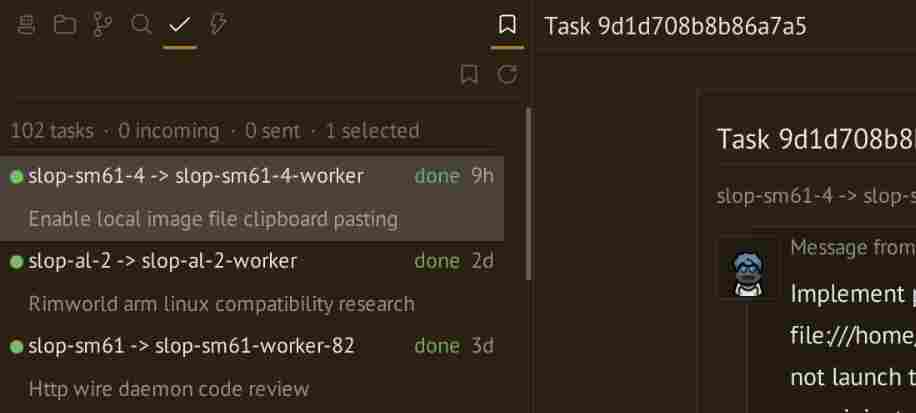
The Tasks view is global; the workspace Project filter does not hide its rows.
For delegation to an existing agent, use slopctl task delegate AGENT "description"
within the permissions below. Mailbox arrival does not wake the recipient. Keep
the returned ID and, for immediate delivery to a running interactive agent, use
slopctl task followup --id ID "Read and accept this task". This requires
Send follow-ups permission and waits for the agent to be ready.
Agents can report to host, the user at the keyboard. Sending assignments to other
agents uses the Send follow-ups scope. Terminal permissions and task participation
are separate. See Using slopctl for task
commands, statuses, and lifecycle.
Tasks are shared by sender and recipient. Only the recipient can update an
uncanceled task. Recipients can cancel queued or accepted tasks. The root token
can cancel those and unfinished worker assignments through the task board, API, or
slopctl task cancel ID. Agents with Cancel tasks permission can cancel
unfinished tasks addressed to recipients within that scope, including ordinary
working tasks without being a participant. Cancellation does not stop the process.
Participants can remove terminal tasks; root can also remove unfinished tasks. Only root can send as host.
Task details and slopctl task show ID retain the original assignment and every
subsequent update in order, with sender, status, and time. Progress reports remain
available after completion and daemon restarts. Removing or pruning a task also
removes its history.
For batch cancellation and removal failure behavior, see Task batch operations.
Credentials and connectivity
Every newly launched agent receives SLOPD_URL and SLOPD_TOKEN automatically.
The token identifies that agent; its current saved policy determines access to other
agents. There are no manually issued session grants or ro/rw token scopes.
Host terminals and administrative configuration remain root-only.
Credentials survive daemon restarts while the same process and stable identity
survive. Stop, exit, failed launch, rename, removal, or identity replacement revokes
credentials. A fresh launch receives a new token. Credentials are stored privately
in <DATA>/credentials.toml.
Agents need network reachability to the daemon API. network = "none" prevents
this access. See Network configuration and the
Security model.
Usage and summaries
SlopWorld can poll provider quotas and balances, and use OpenRouter to generate short titles for agent prompts and tasks.
Credentials
Set credential paths in Settings > Integrations > Credentials. These are files on the daemon host.
| Provider | Credential |
|---|---|
| Anthropic | ~/.claude/.credentials.json, re-read each poll |
| OpenAI / Codex | ~/.codex/auth.json |
| OpenRouter | Configured key file, or the daemon’s OPENROUTER_API_KEY when the path is blank |
OpenRouter usage polling and prompt summaries use the same key setting.
These settings do not control sandbox credential mounts. CLI presets can
separately share credential files with agents; enabling polling does not make
those mounts read-only. A summary key file is not automatically shared with
agents, though the Pi preset forwards OPENROUTER_API_KEY when set.
Usage polling
Open Settings > Integrations > Usage to choose which quota windows and balances to poll. Each row has a poll toggle and an optional interval; leave the interval blank to use the global value, which defaults to 120 seconds. Provider minimum intervals still apply. Polling starts disabled for every row. You can also change the row’s name and icon.
The global Show Usage in statusbar setting starts enabled. A row appears only while polling is enabled and its provider has credentials. Turning off global visibility hides the readout without stopping polling. Optional windows discovered during a poll become available in Usage settings but start with polling disabled.
| Provider | Available usage | Default |
|---|---|---|
| Anthropic | Session and weekly windows, Claude balance | Disabled |
| OpenAI / Codex | Account windows; free plans may expose only weekly usage | Disabled |
| OpenRouter | Balance | Disabled; enable openrouter_balance |
Prompt summaries
Open Settings > Agents > Summaries to choose the OpenRouter model, minimum prompt length, and when to generate titles:
- Codex and Pi sessions:
never,once, oralways. - Tasks:
neveroronce.
Prompts below the minimum length are skipped. For eligible prompts, the daemon sends up to 2,000 characters to OpenRouter with the shared summary instruction prepended. Tasks use the same model and summary settings.
For host shell titles and fixed labels, see Host shells.
Sandboxing
SlopWorld runs agents in Linux sandboxes built by the daemon, slopd.
Bubblewrap (bwrap) creates isolated namespaces and mounts the filesystem paths
available to each agent. In private network mode, pasta supplies outbound access
and DNS. Agents can instead use the host network or have no network access.
Before starting an agent, the daemon builds a launch plan containing its command, environment, mounts, network setup, and optional resource limits. It runs the resulting command in tmux, which provides the agent’s terminal. When resource limits are configured, a systemd user scope wraps the launch so they apply to the process tree. The daemon saves a sanitized version of the plan for inspection.
Configure access
The launch plan combines settings from three places:
- Project mounts provide the workspace and additional files or directories, with read-only, read-write, or cache access.
- Agent settings choose the command, network mode, DNS, and resource limits.
- Sandbox presets add tools, environment variables, private configuration copies, shared credentials, and optional host capabilities.
These settings determine both what the agent can use and what it can change. Writable project files and shared credentials remain host data, and some presets expose capabilities beyond the sandbox. Read the Security model when deciding which access to grant; isolation does not guarantee security.
Preview and apply
Open the agent editor’s Preview tab to review the settings and project mounts for the next start. Check that the workspace and additional paths have the access you intend, along with the selected network mode and presets.
Save your changes, then restart the agent to apply them. Editing settings does not rebuild a running sandbox. See Preview and apply for the agent editor workflow.
Inspect a launch
After a launch attempt, inspect the agent by name:
slopctl sandbox inspect AGENT
The output includes the saved, sanitized launch plan and, when available, the live process tree. Use the plan to check which command, mounts, environment, and network setup the daemon prepared. It remains available after the process exits or the daemon restarts, so it can also help diagnose a failed launch.
A saved plan records intended settings; it does not prove startup succeeded or that every setting is enforced by the running process. Live comparison checks the command executable when the process tree is observable and may be unavailable. See Using slopctl for inspection details.
Sandbox presets
Edit presets
Edit sandbox presets under Settings > Sandbox and app presets under Settings > Commands > Apps. Both reload without a rebuild. The daemon checks preset directories every two seconds. For machine settings and workspace records, see Applying changes.
Sandbox preset files default to ~/.config/slopworld/sandbox_presets/.
See Paths and files for overrides. A user preset replaces
a supplied preset with the same name; deleting an override restores the supplied one.
Example
Save one preset definition per file:
name = "my-tools"
description = "Tools and shared working data"
ro = ["/opt/my-tools"]
rw = ["~/shared-data"]
env = ["MY_TOOL_TOKEN"]

[setenv]
MY_TOOL_MODE = "local"
Paths expand ~ and environment variables. An unset variable omits the whole path,
except in shared, where it fails validation.
Nonempty paths must be absolute after expansion; relative preset paths are rejected.
Missing ordinary bind sources are skipped; an invalid project directory prevents launch.
Protected paths, including the daemon’s configuration and private state, cannot
be mounted through ordinary path fields.
In ro, rw, and dev, a whole entry such as ${KUBECONFIG:paths} expands
an environment variable containing a colon-separated path list.
Empty entries are ignored. Each remaining entry must be absolute and pass the
same protected-path checks as an ordinary bind. Missing files are skipped.
Ordinary $VARIABLE expansion still selects one path, including any literal colons.
Mount fields
| Kind | Behavior |
|---|---|
ro | Mount an existing host path read-only. |
rw | Mount an existing host path read-write. |
cache | Create a shared host directory at launch, then mount it read-write. Creation failures prevent launch. |
dev | Bind an existing host device node with --dev-bind. |
private | The daemon stores one copy per session under the state root. It mounts the copy at the configured path. |
seed | Copy selected files or directories into private state on first start. |
shared | Mount a host-owned file read-write inside private state without copying it. Use this mode for rotating credentials. |
skip | Exclude listed paths from the initial copy into private state. |
The daemon omits ordinary preset binds when their host paths do not exist.
cache directories are created at launch; previewing a preset does not create them. A private bind can use
an existing session copy when its host path is missing.
Global preset and composition
The implicit global preset supplies existing /usr, /etc, /opt, and
~/.local/bin read-only. Sandboxes also have /proc, /dev, and /tmp, which uses
private session state when persistent /tmp is enabled.
To override the global preset with a file, copy the shipped slopd/presets/global.toml
to ~/.config/slopworld/sandbox_presets/global.toml, remove the [[sandbox]]
header, and edit the fields. Keep name = "global" at the top level: user files
contain one flat definition, so the shipped file cannot be used verbatim.
requires adds other presets. Missing or cyclic dependencies are rejected when
saving; required presets appear as disabled controls in the editor.
Overlapping mounts can cover earlier paths. Use the agent editor’s Preview tab to check the resolved result. See Sandboxing for preview and inspection workflows.
Private copies and credentials
A new private directory copies regular files directly inside the source and
configured seed paths, except those excluded by skip or shared. Seeding omits
symlinks and seed paths with symlinked parents inside the private source. A symlink
at the private source root prevents initialization and launch.
Private roots cannot contain another selected private root, including roots from
different presets. Use one private root with seed entries for its subdirectories.
Existing copies are retained and are not reseeded on restart. See Paths and files for state locations and Backup and recovery for reset and restore.
The codex preset seeds user prompts and skills into new private copies. Existing
copies need the skills installed there or a private-state reset to pick them up.
shared mounts existing host credential files read-write inside private directories.
Host updates reach the sandboxes, and agents can overwrite those files in place.
Treat them as writable host data; see the Security model.
Access warnings
Yellow Sensitive access marks credentials, devices, or services outside project files. Deep orange Host control marks access that can run processes outside the sandbox or control host applications. Host control includes access as your user; it does not require system root privileges. Sensitive credentials can still authorize high-impact changes to remote services.
Preset selectors show the highest warning level inherited through requires, with
the responsible presets in the explanation. The selected configuration also includes
the global preset. Warnings remain visible on required and inherited presets.
An unmarked preset has no declared warning; this is not a guarantee of safety.
Use warning_level = "sensitive" or warning_level = "host_control" and an
escapes explanation in custom presets, or edit Warning level and Access
warning in Settings. The default is none; escapes supplies explanatory text
without changing that level. The tmux and daemon_config capabilities
always show host control, regardless of the declared warning level.
For example, aws, gh, kube, and psql expose credentials and show sensitive
access. Docker, Podman, D-Bus, systemd, X11, and slopworld-debug show host control.
android-dev shares writable Gradle initialization scripts and shows host control.
android-debug also inherits host control through X11. Warnings describe capabilities;
they do not add or remove sandbox permissions.
Android development
Use android-dev for builds and android-debug for connected devices and emulators.
Both share the host’s writable ~/.android and ~/.gradle directories, creating
these directories at launch if needed. This keeps ADB device keys, emulator state,
Gradle configuration and caches consistent with host tools. SDK and NDK mounts
are read-only; install or update toolchains on the host.
android-debug also forwards ADB server and device selection variables and exposes
paths selected by ADB_VENDOR_KEYS. With shared networking, host and sandbox
clients can use the same ADB server. Restarting that server affects both clients.
Private networking does not expose a host loopback ADB server.
Preset changes apply to new agent processes. Restart the agent to change its mounts; an existing process retains its original Android directory.
SlopWorld development
Use slopworld-dev for editing, builds, and game-free tests. It provides read-only
RimWorld files from SLOPWORLD_GAME or the standard installation locations, plus
Git configuration, Python packages, .NET and Rust tooling, and shared compiler
caches. Rust access comes through rust-sccache, including writable installed
toolchains from rust-cache. The project directory supplies write access for
source and build outputs.
slopworld-debug depends on slopworld-dev and adds installation and live debugging:
writable game files, profiles and host installation directories, desktop services,
Docker, host terminals, and the daemon root credential. Select it only when those
host-control capabilities are needed. The base preset does not grant them;
other selected presets and the implicit global preset still contribute access.
Tool configuration
The dotnet preset mounts user-installed SDKs and tools under ~/.dotnet
read-only. It sets DOTNET_CLI_HOME to /tmp/slopworld-dotnet-cli, backed by
persistent private session state, so CLI writes do not change the host installation.
Selected NuGet configuration and plugin mounts are also available read-only beneath
that CLI home. With nuget-cache, its package and download paths use the shared
host caches there as well; without it, NuGet caches remain private to the session.
The kube preset mounts ~/.kube and each existing file listed in the daemon’s
KUBECONFIG read-only. Configuration references to credentials or executables
outside mounted paths require additional mounts.
Preset mounts beneath /tmp, including X11 sockets, remain available when the
agent enables persistent /tmp. Private preset copies still take precedence.
SSH agents
Select ssh for SSH configuration and known hosts. Add ssh-agent to expose the
socket named by the daemon’s SSH_AUTH_SOCK, or 1password when your SSH config
selects ~/.1password/agent.sock.
An explicit IdentityAgent in ~/.ssh/config overrides SSH_AUTH_SOCK.
Selecting ssh-agent does not change that configuration or make the 1Password
socket available when SSH_AUTH_SOCK points to another agent. Use ssh -G HOST
to check the effective identityagent setting. ssh-add -l queries the agent
named by SSH_AUTH_SOCK, so its success alone does not prove SSH uses that agent.
Network and DNS
Agents own their network mode:
| Mode | Behavior |
|---|---|
none | The agent has a private network namespace with no network access. |
private | pasta provides synthetic DNS and outbound access. It forwards only the daemon TCP port back to the host when the daemon listens on 127.0.0.1 or all IPv4 interfaces. |
host | Uses the host network and can reach local services. |
With private, pasta routes DNS requests. resolved uses the daemon’s current resolver.
An explicit dns value supplies one or two IPv4 servers to pasta.
With host, resolved uses the host resolver. The daemon writes explicit server addresses to a
resolver file and mounts it in the sandbox. With none, the sandbox has no network access. DNS
settings have no effect.
Network and DNS changes take effect on the next agent start.
Resource limits
Set process limits in the agent editor. Limits do not provide an isolation boundary.
Environment
Bubblewrap (bwrap) starts with --clearenv.
The daemon forwards PATH, LANG, USER, LOGNAME, and SHELL, plus all LC_* variables.
It sets TERM and COLORTERM explicitly.
Preset env forwards named variables from the daemon.
Preset setenv values override forwarded variables.
The daemon then sets SHELL to the agent’s configured shell.
Default presets do not forward configuration-root variables such as CODEX_HOME.
The Codex preset stores ~/.codex in private state.
Security model
SlopWorld provides more isolation than running agents directly on your desktop, but does not guarantee security. Back up writable projects and mounted data; see Backup and recovery.
What isolation provides
Bubblewrap isolates namespaces and controls visible filesystem paths.
Network mode determines whether an agent has no access, private outbound access,
or the host network. Only private mode uses pasta. See
Network and DNS for configuration.
What can reach host data
Project directories, including .git, are writable by default. Agents can change
Git configuration and install hooks. Configure read-only mounts where appropriate.
Shared credentials are writable host files when the selected preset includes the mount and the source exists. Refreshes and in-place writes reach other sandboxes using that file. See Credential mounts. Usage polling reads host credentials separately; see Usage polling.
Shared credential mountpoints cannot be unlinked from inside the sandbox. Recursive deletion of their parent directory can still remove neighboring private files before failing at a mountpoint. Restart does not reseed an existing private copy. Repair the missing files or reset the agent’s private state.
Presets can expose host capabilities. The slopworld-debug preset deliberately
permits broad host access for game development. In non-worker sessions its
read-only endpoint bind exposes the root token; read-only access does not restrict
credential use. Workers instead receive scoped credentials. Escape warnings do
not enumerate every secret exposure.
Daemon API authority
Root authorization controls host sessions and configuration. Agent credentials
identify callers; their current saved permissions authorize actions; see Agent collaboration.
[daemon].token must be nonempty and contain more than whitespace. Startup and
settings updates reject blank tokens. First startup generates and saves a secure
token when config.toml does not exist. Existing files must supply a token.
Limits
Agent sandboxes have no general seccomp policy or per-agent disk quota. Resource limits apply only when configured and do not create an isolation boundary. See Sandbox presets for mounts, environment, and special access.
Settings
Open Settings with the gear icon in the top bar or the Settings command in the palette. Settings opens as tabs over the terminal pane.
Applying changes
| Change | When it applies |
|---|---|
| Most profile, game, and audio controls | Live; preferences are saved automatically. |
| Code appearance | After Save; restart active readers to use the new settings. |
| Daemon forms | After Save validates and applies the submitted values. |
| Agent command, network, DNS, limits, sandbox, and project mounts | Next agent start; restart a running agent. |
| Listener address and other startup settings | After daemon restart. |
Editors have separate Save actions. Discard abandons the current form’s edits. While the daemon is running, use Settings, the configuration editor, or the API for machine settings and workspace records. To edit their files externally, stop the daemon first; those files load at startup. Library items and preset files reload while the daemon runs.
On exit
Closing the game can leave agents running on the daemon host. Use General > Game > On exit to choose whether quitting also stops sessions and radio playback. Stopping sessions does not delete their configuration.
If a session cannot be stopped, you can retry, quit anyway, or cancel quitting. Disabling exit confirmation makes the selected actions immediate. The colony still saves through its usual shutdown path.
Display
Open Settings > Display for fullscreen, frame limits, VSync, and scrolling.
On Linux, the default launcher window override uses X11 or XWayland and keeps the
renderer windowed. Display > Fullscreen and F11 control fullscreen through the
window manager; the window stays undecorated when fullscreen is off. Native
RimWorld display modes are hidden.
--no-window-fix skips the launcher’s X11 selection.
Leave the frame limiter on Auto to follow the monitor’s refresh rate, or lower it to reduce rendering work. VSync synchronizes presentation with the display but can add scrolling latency; it takes precedence over the selected frame limit. Turning VSync off restores that limit. Unfocused windows use a fixed background frame rate and restore your selection on focus.
The limit controls rendering. Keyboard and mouse events, daemon communication, and game updates continue between rendered frames. A low limit makes visual feedback less frequent, but does not pace typing or send one character per frame.
Disable Smooth scrolling if you prefer discrete wheel steps. SlopWorld keeps the desktop awake while it runs, even in the background; turn off Window > Inhibit screensaver to allow normal desktop idle behavior.
Display preferences apply live and are saved with the profile. Eco mode controls colony simulation separately.
Appearance
Under Appearance > Code, Auto selects from tools installed on the daemon host. Installing or removing tools can change that selection; choose an explicit tool or custom command when you need it to stay fixed.
Moor is optional and preferred by Auto when installed on the daemon host. It preserves diff backgrounds during horizontal scrolling. File views stream the selected highlighter into moor and retain source numbering and line navigation. When Auto selects bat as the pager, bat uses less or more to page its output; without either, it prints directly. Save and restart active readers after a change.
Date and time
Set date and time formatting under General > Locale. The Auto time zone uses the game desktop’s zone, even with a remote daemon. Choose a named zone to override it. Changes apply live to clocks and timestamps and are saved with the profile. Date formatting also applies to the game build date. The time zone also sets Planner’s Today and overdue calculations and the colony clock. Due dates remain calendar dates. Calendar timers use their saved time zone; this preference supplies the initial zone for new timers and displays occurrence timestamps without changing existing schedules.
Storage
Open Settings > Storage to inspect private agent state and shared caches, reset private state, restore trash, or delete unused state. See Storage and caches and Backup and recovery for the procedures.
Workers
Open Settings > Agents > Workers to edit and save the initial worker prompt. Changes apply to new workers.
Configure delegation, allowed templates, and current agent permissions in Edit agent > Permissions. See Agent collaboration.
Planner
Open Planner with the chess table button beside Settings or the chess table on the map. See Planner for the backlog, notes, and worker assignments.
Configuration file
Use the palette’s Configuration: Edit config.toml action for machine settings, including fields without a Settings page. The editor hides the daemon token and validates changes before saving. Projects, agents, and host shells have their own editors and are preserved when machine settings are replaced.
See Paths and files for file locations.
Jukebox
Open the map jukebox or status-bar jukebox control. The OST is a built-in source; Settings > Audio > Sources controls its visibility.
RimWorld always plays the bundled OST locally. The daemon plays radio and Spotify. Switching back to OST waits for the daemon to stop, so the two players do not overlap.
Playback controls act on tracks for OST and on stations for radio. Switching radio stations preserves the closest available bitrate. Pausing stops playback; playing restarts the selected source. Spotify track selection stays in its terminal.
For daemon audio playback, install rtkit on the machine running the daemon
and make its system D-Bus available so the daemon
can request real-time scheduling for its audio output thread. Playback continues
without that priority if the request fails; the daemon journal records the failure.
Internet radio
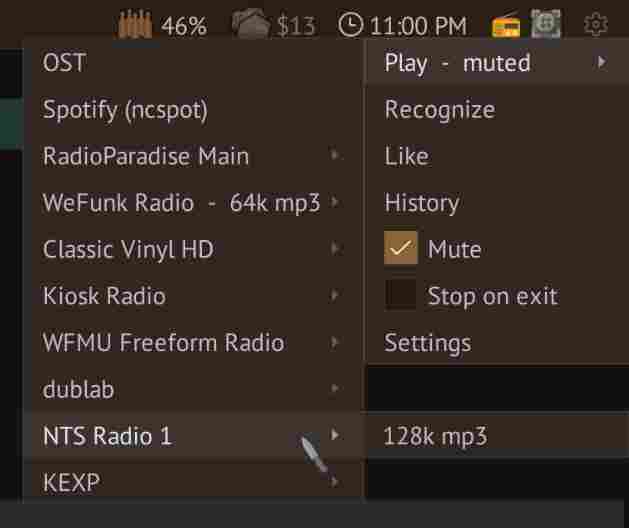
Add a radio station with Settings > Audio > Add source. Edit or remove sources in the Sources table. ICY metadata supplies the track display. Volume multiplies RimWorld’s audio settings; pause stops daemon playback and downloads.
For song recognition, install songrec on the game machine; it uses local audio output,
with pactl selecting the default output monitor.
Likes are saved locally; see Paths and files for stations
and liked-song locations.
Spotify via ncspot
This feature requires Spotify Premium and ncspot installed on the machine
running the daemon, with audio output available there. Sidecar mode does not
support Spotify playback. The source is hidden when ncspot is unavailable; hide it manually through
Settings if desired.
- Install
ncspot. - Choose Tune → Spotify (ncspot).
- Complete ncspot’s login.
- Choose music in its terminal.
Pausing or switching to OST/radio closes ncspot. Playing starts it again. Use its
terminal to resume or choose music. Stop on exit also applies. Playback and
Spotify library controls remain in ncspot. “Like” button writes only SlopWorld’s local likes.
Sidecar limitations
Sidecar mode uses RimWorld to play the bundled OST.
Internet radio, song recognition, and Spotify playback are not available.
Radio output
Settings → Audio → Daemon radio output selects where slopd plays radio. Leave Output and Backend on Auto for normal use. Auto shows the detected output in parentheses. The list contains outputs exposed by the daemon host’s audio system. With a sound-server output, use desktop sound settings to choose speakers or headphones. Refresh outputs updates the list and shows the currently open output.
The advanced backend preference can favor PulseAudio-compatible output (including PipeWire’s Pulse server), PipeWire, or the system default. If a selected output cannot open, the daemon falls back automatically. Save persists the choice on the daemon host and reconnects any playing radio stream; Discard restores the saved settings. These choices do not route RimWorld’s OST/game sounds or Spotify.
Saves and profiles
Profile selection
The launcher automatically creates a RimWorld save-data folder for each named peer:
slopworld connect tank http://tank:7717
slopworld --endpoint tank
connect checks the daemon, prompts for its key with hidden input when needed, saves
<CONFIG>/endpoints/tank.toml. It does not launch the game. To launch a saved peer, use slopworld --endpoint NAME. Running
slopworld connect NAME again verifies and refreshes its saved credentials.
slopworld endpoints lists saved names and URLs.
Keys are never displayed. A failed verification leaves the saved connection intact.
local is reserved for the daemon on this machine and cannot be registered with
connect. It is the default: run slopworld without --endpoint to launch it.
The selected peer uses <DATA>/profiles/NAME. local is the default.
slopworld --endpoint NAME selects another endpoint for one launch. Renaming a
peer changes its profile; changing its URL or key keeps the same profile. For an
explicit SLOPD_ENDPOINT file, the filename without .toml supplies the profile name.
--sidecar selects a separate catalog under <CONFIG>/sidecar/, with
profiles under <DATA>/sidecar/profiles/NAME. Use slopworld --sidecar connect NAME
and slopworld --sidecar endpoints to manage those peers. The sidecar
recipes select sidecar mode explicitly.
--profile DIR overrides automatic profile selection, followed by SLOPWORLD_PROFILE.
Explicit paths can share a folder. Profile paths cannot contain =.
See Paths and files for locations and overrides.
New profiles start with master volume at 80%, game at 30%, music at 80%, ambience at 0%, and UI at 30%. Existing preferences are preserved.
Profile initialization and repair
Create the profile marker and missing mod list without opening the game:
slopworld profile init --endpoint tank
Existing settings and mod choices are preserved. With --sidecar, initialization
sets the sidecar UI default only when Config/SlopWorld.toml is missing.
The command works without an installed game or a running daemon. Add
--profile DIR after init to initialize an explicit save-data folder.
Mod list reset
To replace Config/ModsConfig.xml, run:
slopworld profile reset --endpoint tank
This discards the existing mod list and restores Core and SlopWorld. Saves and other
settings are preserved, and the game is not launched. Add --profile DIR after
reset to select an explicit folder.
Troubleshooting
Use the launcher for normal play. See The mod disables itself at startup for marker repair and Multiple instances for launch conflicts.
Storage and caches
Open Settings > Storage to inspect agent private state and shared caches, restore trash, or remove unused state.
Private state
Agent private state holds tool configuration, history, and private copies of files. It is separate from the project checkout. Restarting an agent reuses its private state; resetting or deleting a configured agent moves that state to trash. Temporary-agent state is removed instead. See Session lifecycle for the full action table and Backup and recovery for restoration.
Shared caches
Cache mounts let checkouts share build data. Settings > Storage shows their paths and sizes. Removing a cache mount removes checkout links but keeps the cached files. See Project mounts for setup, conflicts, and removal.
Files and saves
Projects, worktrees, external mounts, credentials, and game saves can live outside agent private state. Resetting private state does not undo project edits. See Paths and files for locations and Backup contents for what to preserve.
Backup and recovery
Back up your data before running agents, including writable project directories, worktrees, and other mounted data. See the Security model for sandbox limits.
Backup contents
The table lists default locations for an installation without a sidecar. If the
daemon runs remotely, back up its configuration and data on that machine. On the
game machine, also back up the game profile, saved connections in
<CONFIG>/endpoints/, and likes in <DATA>/jukebox.toml. See
Paths and files for overrides, XDG locations, and sidecar paths.
| Data | Default location | Include |
|---|---|---|
| Configuration and catalogs | ~/.config/slopworld/ | config.toml, project records, user libraries, presets, and the entire agent_templates/ directory including its index and generations. |
| Workspace records and authority | ~/.local/share/slopworld/ | Agent definitions and permissions, host-shell definitions, worktree/task records, Planner TODO.txt and planner/, timer-state.json, and any pending workspace recovery journal. |
| Agent private state | ~/.local/share/slopworld/sessions/ | Tool state, history, configuration copies, and recoverable trash. |
| Game profile | ~/.local/share/slopworld/profiles/ | Saves and mod settings. |
| Jukebox | ~/.config/slopworld/jukebox/ and ~/.local/share/slopworld/jukebox.toml | Stations and liked songs. |
| External data | Your project, worktree, cache-mount, and credential-source paths | These are not backed up by copying SlopWorld’s roots. |
Preserve config.toml, which contains the authoritative daemon token.
The daemon recreates its endpoints/local.toml descriptor; it cannot replace that
configuration. Saved client connections in endpoints/NAME.toml must be backed up.
Daemon caches, including activity and prompt summaries, are disposable.
Backup procedure
- Stop agents, host shells, and other tools writing to the data being copied. Stopping the systemd service alone leaves tmux and its processes running.
- Save and close the game so its profile stops changing.
- On the daemon’s machine, stop its service with
systemctl --user stop slopd. For a sidecar, runslopcar stop; this also ends the container’s tmux and agent processes. - Copy the locations listed above, including any path overrides, into one backup. Preserve permissions and symlinks. Keep all writers stopped until copying ends, then start the daemon or container again.
Keep any workspace.save-journal with the same backup’s configuration and data
files. Do not delete the journal or combine files from different backup revisions.
Machine and profile recovery
Stop writers, close the game, and stop the daemon or container as in Create a backup. Restore configuration, data, private state, the game profile, and external data from the same backup to their configured locations. Finish restoring projects before starting agents that reference them.
If workspace.save-journal is present, restore the original SLOPD_CONFIG_ROOT and
SLOPD_DATA mapping before starting the daemon. Startup
recovers interrupted workspace transactions before loading records. This recovery
covers process interruption, not power-loss durability.
To start the daemon’s systemd service, run this on its machine:
systemctl --user start slopd
For containers, follow Sidecar mode. Agents with autostart enabled start automatically. Start other agents from the sidebar. The daemon recreates its endpoint descriptor from the saved configuration.
Agent private-state recovery
Resetting or deleting a configured agent moves its state to recoverable trash, retained for at least 14 days. Temporary-agent state is removed instead. See Private state for the lifecycle of restart, reset, and deletion.
To restore a trash entry:
- Stop the agent.
- If it has fresh private state, reset it.
- Open Settings > Storage.
- Select Restore on the agent’s trash entry.
A deleted agent can be restored when its name is available and its saved project and mounts remain valid. Restore the project configuration first if needed. Configured agents retain their private state while Down. Remove unwanted orphaned entries through Settings > Storage.
Updates and uninstallation
These steps apply to SlopWorld installed through your package manager. For container updates, see Sidecar mode. For a source checkout, see Build from source.
Updating
See the Changelog for changes in each release.
To update, download the replacement packages for the components you installed and follow the package installation steps. Refresh the installed mod, then reload and restart the daemon as your normal user:
# Update the mod
slopworld mod install

# Restart the daemon
systemctl --user daemon-reload
systemctl --user try-restart slopd.service
Your existing agent/shell sessions in tmux keep running.
Removing
For a full local uninstall, close all tmux sessions, stop the daemon, and uninstall the mod. On client-only or server-only machines, run only the steps for installed components:
# Disable daemon, unlink mod
systemctl --user disable --now slopd.service
slopworld mod uninstall

# Uninstall package

## Debian / Ubuntu
sudo apt remove slopworld slopd slopctl

## Arch
sudo pacman -R slopworld slopd slopctl

## Fedora
sudo dnf remove slopworld slopd slopctl
Per-user configuration, sessions, and saves are preserved; see Paths and files.
Troubleshooting
The mod disables itself at startup
The refusal dialog means the current save-data folder lacks slopworld.profile.
SlopWorld disables itself in that profile’s mod list and asks you to quit. Restart
RimWorld to play without it, or use the slopworld launcher to start SlopWorld.
If saving the mod list fails, the dialog reports that automatic disabling failed.
Launching directly, selecting the wrong profile, or losing the marker can cause it.
Use Game profiles to select and initialize the profile.
The launcher cannot find the game
Pass slopworld --game /path/to/game or set SLOPWORLD_GAME for the launcher.
Set RIMWORLD for just build/install/run targets. See Install.
Harmony exceptions at startup
Search game logs for patching incomplete:. Use slopctl logs game --follow;
see Paths and files for log locations. These exceptions do not
appear in the terminal that launched the game.
For a native crash during startup patching, inspect the last [SlopWorld] patching
entry in the game log. It names the patch class being processed when startup stopped.
The preceding Harmony entry records the loaded library version and location.
A native crash can bypass the mod’s exception handler, leaving no
patching incomplete: entry. The last patch marker narrows the investigation;
it does not establish that the patch caused the crash.
The daemon is running but the mod shows no connection
Run slopctl status and inspect daemon logs with slopctl logs daemon.
Check the host or container that actually runs the daemon. For a daemon managed
by systemd, run these commands on its machine:
ss -tlnp | rg 7717
journalctl --user -u slopd -n 30 --no-pager
If no listener appears, check [daemon].bind in the configuration and logs for
startup failures. Service active status alone does not mean the listener is ready.
If the endpoint descriptor is missing or stale, restarting the daemon recreates it.
See Sidecar mode for container lifecycle.
An agent cannot reach the network
After a host network change such as a VPN toggle, private-mode connections may hang. Restart the agent from the sidebar to recreate its private network while preserving state. SlopWorld does not automatically restart agents to repair this.
network = "none" intentionally prevents connectivity. See
Network and DNS for other modes.
An agent starts but exits immediately
Use slopctl logs daemon and slopctl sandbox inspect NAME to inspect the failed
launch. Check whether the selected command is installed and available, including
commands from removed presets. Missing preset host paths are skipped rather than
being a launch error by themselves. See Sandbox presets.
Multiple instances
Launcher processes using the same profile cannot launch simultaneously. The launcher also detects games launched directly. Use separate Game profiles for separate instances.
tmux says “no sessions” but agents are running
Use the SlopWorld server’s socket, as described in Attaching to tmux. Sidecar tmux runs inside its container.
Settings changes have no effect
See Applying changes for Save and restart requirements.
CPU usage
See the Security model for sandbox limits and Requirements for supported game versions.
Configuration validation errors
Inspect daemon logs and correct the fields named in the error. Machine settings
belong in config.toml; workspace records use the locations in
Paths and files. Usage polling uses [daemon.usage_items.*] rows;
see Usage polling.
Changelog
All notable changes to this project will be documented in this file.
The format is based on Keep a Changelog, and this project adheres to Semantic Versioning.
0.1.0 - 2026-11-11
Breaking changes
- RimWorld 1.7 (Waylith) is required. Get it from Steam, “unstable” branch.
- slopworld package has been split to
slopworld,slopd,slopctl,slopcar. - macOS suport has been removed.
Added
- Jukebox: Added playback controls to the context menu.
- Packaging: Added sidecar launcher packages.
- Settings: Added radio output and audio backend selection.
- Settings: Show total trash size on the Storage tab.
Fixed
- Git: Bound memory use when checking worktrees before removal.
- Jukebox: Avoid unnecessary resampling during radio playback.
- Settings: Fixed scrollbar flashing and delays when opening settings.
- Settings: Persist audio volume changes across restarts.
- UI: Keep the loading screen visible through startup transitions.
- UI: Fixed Command palette Git actions targeting the wrong checkout.
- UI: Fixed stale task status changes and cancellation permissions in Command palette.
Changed
- Jukebox: Request real-time audio scheduling on Linux.
- Jukebox: Play the bundled soundtrack locally in-game.
- Jukebox: Resample the bundled soundtrack to 48 kHz.
- Settings: Disable post-processing by default.
- Packaging: Split
slopworldpackage intoslopworld,slopd, andslopctl.
Removed
- Platform: Removed experimental macOS support.
- Game: Removed RimWorld 1.6 support.
0.0.14 - 2026-11-06
Added
- Agents: Added Permissons tab to agents’ Edit window to manage API/CLI access.
Fixed
- Files: Prevent delayed file reveals from changing selection after navigating elsewhere.
- Settings: Prevent stale configuration reads from overwriting newer changes.
- Settings: Fixed saves remaining pending after switching daemon connections.
- Tasks: Enforce cancellation permissions for task status updates.
- Terminal: Fixed emoji widths shifting following text and cursor positions.
- Terminal: Fixed missing symbols and glyphs overlapping adjacent cells.
- UI: Reduce stuttering during rapid scrolling.
- Workers: Abort startup recovery when terminal discovery fails.
- Workers: Match recovered workers by identity and task ownership instead of name.
- Workers: Retry failed task updates after session cleanup.
Changed
- Agents: Replace session grants with per-agent Permissions that apply without restarting.
- Sandbox: Share Android and Gradle state with host development tools.
- Terminal: Use system font fallback preferences on Linux.
Removed
- API: Removed manual session grants. Agents using old tokens need a fresh launch after upgrading.
0.0.13 - 2026-11-02
Added
- CLI: Added
slopctl task cancelto cancel tasks without stopping workers. - CLI: Added
slopctl task followupto send additional instructions to running workers. - Library: Added Timers to send prompts, spawn workers, or run shell scripts on calendar/delay/interval schedules.
- Planner: Added a todo.txt backlog for planning and worker dispatch.
- Settings: Added time zone selection under Locale.
- Workers: Added custom names in the spawn dialog and
slopctl worker spawn --name. - Workers: Added per-agent delegation policies and permissions.
Fixed
- Agents: Skip auto-resume when conversation history is empty.
- Agents: Provide self-scoped daemon credentials for each launch.
- Agents: Wait for the Codex composer before submitting startup prompts.
- CLI: Use
SLOPWORLD_PROJECTwhen--projectis omitted. - Git: Stop polling directories confirmed to be outside a repository.
- Sandbox: Fixed Android preset NDK paths and environment.
- Sandbox: Fixed OpenCode preset paths.
- Terminal: Fixed regression in pasting local image file URIs into Codex.
- Terminal: Fixed semicolon recovery for non-US keyboard layouts.
- Workers: Keep workers without a visible parent in their project group.
- Workers: Prevent Codex folder trust prompts from blocking startup.
Changed
- Game: Expanded map zoom limits and added a backdrop.
- Library: Merged Breadcrumbs into Prompts.
- Settings: Lowered default game volume.
0.0.12 - 2026-10-27
Added
- CLI: Added colors and shell completions for
slopctl,slopworld, andslopcar.
Fixed
- General: Fixed HTTPS support in launcher and mod.
- UI: Added Shells to the Agents sidebar and Command palette filters.
Changed
- CLI: Replaced profile flags with
slopworld profile initandslopworld profile reset. - CLI: Task updates now require
--id IDor the injected task ID. - CLI: Create worker checkouts with
worktree createbefore selecting them withworker spawn --worktree.
Removed
- CLI: Removed game argument forwarding from
slopworld.
0.0.11 - 2026-10-24
Security
- API: Revoke pending WebSocket commands and updates when the root token changes.
- Files: Prevent crafted filenames from executing commands through file actions.
- Git: Prevent worktree removal from modifying sibling checkouts through repository filters.
Added
- Settings: Added
moorpager support (best performance, but not packaged in Debian/Fedora). - Terminal: Added “Save as” menu to create prompt, breadcrumb, shell script, or file action from selected text.
Fixed
- Agents: Hide unsupported Edit and Shell actions for workers and temporary agents.
- Agents: Prevent creating or restoring agents with names already used by shells or other sessions.
- Game: Prevent player shortcuts from consuming number keys in dialogs.
- Git: Added missing actions to file context menus.
- Library: Refresh worktrees after renaming or removing them.
- Settings: Preserve unfinished preset text when switching between entries.
- Storage: Prevent trash cleanup from deleting private state during reset or restore.
- Tasks: Keep task details updated when the Tasks sidebar is hidden.
- Terminal: Prevent flicker when scrolling horizontally in pagers.
- Terminal: Preserve Alt in Ctrl+Alt keyboard shortcuts.
- UI: Fixed Agents sidebar becoming empty after switching tabs.
- UI: Fixed missing emojis in Markdown previews.
- UI: Fixed syntax highlighting in diffs breaking after long lines.
- Workers: Use the selected agent’s checkout when no base revision is specified.
0.0.10 - 2026-10-23
Security
- Sandbox: Prevent crafted terminal input from executing tmux commands outside the sandbox.
- Sandbox: Prevent crafted
.gitfiles from granting write access to another repository’s metadata.
Added
- CLI: Added
slopctl config getandslopctl config setto read and change daemon settings. - CLI: Added
slopworld connectandslopworld endpointsto manage saved daemon connections. - CLI: Added automatic game profile selection for each connection.
- Settings: Added configurable on-exit actions to the General tab.
- UI: Added missing View and Add actions to Command palette.
Fixed
- Apps: Recognize Debian’s
batcatexecutable. - Game: Mute ambient sounds while the colony is paused.
- Game: Player pawn avoids construction job.
- Jukebox: Fall back to local OST playback when daemon playback fails.
- Jukebox: Drop the jukebox in a pod during initial cutscene.
- Jukebox: Remove random pauses between local OST tracks.
- Settings: Refresh active fonts and font menus after rescanning installed fonts.
- Terminal: Fixed image paste failing when the daemon starts before the graphical session.
- Terminal: Fixed image paste into Codex on remote daemon.
- Terminal: On Shift+Enter send Enter in shells and multiline input in agents.
- Terminal: Prevent stalled clipboard helpers from blocking later copy-paste actions.
- Terminal: Preserve control characters in keyboard input and clipboard paste on tmux 3.8.
- Terminal: Use the game desktop’s clipboard when connected to remote daemon.
- UI: Fixed separator lines disappearing during pixel snapping.
- UI: Show the daemon hostname in the game window title.
- UI: Show an empty state in the Agents sidebar.
Changed
- Packaging: Require bat, less, micro, xclip, and tmux 3.7+.
- Settings: Adjust default audio volumes and backdrop dimming.
- Storage: Store connection files in
endpoints/. - Terminal: Keep clipboard access on the game desktop, including remote connections.
- UI: Prefer installed Nerd Font variants when terminal font is set to Auto.
- UI: Updated default fonts and sizes.
Removed
- API: Removed
/clipboardmethods and image imports from file URIs. - Clipboard: Removed unused
wl-clipboardintegration.
0.0.9 - 2026-10-21
Fixed
- Agents: Preserve temporary agents’ settings and private-state identity across daemon restarts.
- Keyboard: Restore the last active session or open file when switching between groups.
- Library: Fixed project renames breaking saved library items.
- Projects: Prevent deleting projects referenced by saved library items.
- Sandbox: Copy user Codex skills into new private directories.
- Sandbox: Fixed skipped files being copied into private directories.
- Sandbox: Fixed command comparison in live inspection.
- Sandbox: Fixed user-installed .NET SDKs being hidden by private CLI state.
- Sandbox: Mount custom Kubernetes configuration files listed in KUBECONFIG.
- Sandbox: Preserve X11 and other preset sockets when using persistent /tmp.
- Sandbox: Preserve captured cache paths and warning levels across edits and daemon restarts.
- Sandbox: Reject overlapping private directories.
- UI: Fixed unchecking All in agent status, Library, and task filters.
Changed
- Agents: Require stopping running agents before deleting them.
- Settings: Made post-processing intensity configurable.
- UI: Use grained texture for accented surfaces.
0.0.8 - 2026-10-20
Added
- Settings: Added “CRT overlay” toggle on Display tab to apply post-processsing effects.
Fixed
- Commands: Command parsing now recognizes shell comments.
- Commands: Reject commands with unfinished quotes or trailing escapes.
- Files: Fixed file actions misinterpreting placeholder text in filenames.
- Files: Fixed ignored entries hiding visible files in directories with more than 500 entries.
- Files: Fixed handling filenames with trailing spaces and environment variable references.
- Files: Hide git shortstat from foldable groups.
- Files/Git/Search: Reject non-UTF-8 filenames to prevent opening or modifying the wrong file.
- Git: Fixed diffs showing renamed files as additions when the original path is outside the selected directory.
- Git: Fixed handling special characters in filenames.
- Git: Fixed unstaging renamed files leaving the original path’s deletion staged.
- Jukebox: Fixed playback failing when the preferred audio device is unavailable.
- Jukebox: Report when station changes are saved but invalid definitions prevent the live catalog from reloading.
- Library: Fixed command placeholders becoming part of the entered command.
- Library: Prevent duplicate saves and edits while saving.
- Search: Fixed blank result previews for lines containing non-UTF-8 text.
- Search: Fixed personal ripgrep settings affecting matching files.
- Search: Preserve leading and trailing spaces, including whitespace-only queries.
- Settings: Fixed unsaved sandbox and app preset edits affecting the shared catalog.
- Settings: Preserve trailing spaces in sandbox environment variable values.
- Tasks: Keep available recipients up to date while the delegation dialog is open.
- Terminal: Fixed opening a terminal path link on correct line number when the file is already open.
- Terminal: Fixed terminal path links failing in directories with more than 500 entries.
- UI: Allow retrying failed temporary project path previews.
- UI: Fixed unchecking All projects and All worktrees in the project filter.
- UI: Fixed saving temporary projects opened from the Worktrees tab.
- UI: Preserve directory picker navigation after a failed directory read.
- UI: Tuned loading screen animation.
- Usage: Fixed polling countdown intervals.
- Workers: Prevent older base revision previews from overwriting newer results.
Changed
- Settings: Select and highlight Storage rows on click, add “Explore” button.
0.0.7 - 2026-10-19
Added
- UI: Added an Open files toggle to the sidebar (button before Project filter or F9 shortcut).
Fixed
- Keyboard: Fixed Alt navigation shortcuts consumed by the focused Search field.
- Keyboard: Skip file panes when cycling sessions with Alt+Z/Alt+X.
- Terminal: Fixed selection drift in scrollback when new output arrives.
- UI: Complete context menus for open file tabs.
- UI: Fixed missing Git shortstat on checkout’s foldable heading in sidebar.
- UI: Fixed active markdown preview tabs not being highlighted in sidebar.
- UI: Fixed dropdown spacing, hover highlights, and closing on second click.
- UI: Fixed flicker when switching between two files in unpinned tab.
- UI: Fixed Search preview tabs pinning.
- UI: Fixed slow sidebar resizing with Settings open.
- UI: Fixed status bar button highlights and spacing.
- UI: Pressing Search now preserves the open file’s terminal pane.
- UI: Tabs and navigation now respond on mouse press instead of release.
- UI: Unified dropdown selectors’ styling and behavior.
- UI: Use distinct icons for markdown and image preview tabs.
Changed
- Keyboard: Preserve active sidebar tab when pressing F12 or Alt+A/Alt+S.
- Settings: Separate VSync from the frame limiter and disable it by default.
- Settings: Default the frame limiter to Auto, matching the display refresh rate.
- UI: Improve titles in the status bar, share context menus with sidebar items.
- UI: Show Open files across all sidebar tabs.
0.0.6 - 2026-10-18
Added
- Keyboard: Added Alt+A/Alt+S shortcuts to focus previous/next open file.
- Keyboard: Added Shift+Alt passthrough for navigation shortcuts to send them without Shift.
- UI: Added folding for project/checkout/file results on Search sidebar tab.
- UI: Mark main checkouts with a root icon on sidebar tabs.
Fixed
- Sandbox: Retain numeric UID/GID in Bubblewrap to allow passwd-based home lookups.
- Search: Apply search options immediately when toggled.
- Search: Keep results independent of Files visibility settings.
- Tasks: Preserve and display the full history of progress reports and status updates.
- UI: Fixed loading screen brightness jump.
- UI: Don’t add nested foldable in sidebar trees when only the main checkout is selected.
- UI: Small fixes in scrollbar widget and Sidebar layout.
Changed
- Search: Increase the result limit from 200 to 1,000 matching lines per checkout.
- UI: Fade wide sidebar labels to bg color instead of truncating with ellipsis.
- UI: Show checkout branches and Git change summaries in shared tree headings.
0.0.5 - 2026-10-17
Added
- Library: Added built-in Magic 8 ball breadcrumb for making important decisions.
- Search: Added include/exclude filters.
Fixed
- Jukebox: Fixed stream idle timeout regression after ureq upgrade.
- Sandbox: Fixed missing bind paths in rust-cache preset.
- Terminal: Hide built-in breadcrumbs when Grandma’s visiting.
- UI: Hide usage indicators in statusbar if API keys are not set.
Changed
- Settings: Set default Usage polling interval to 120s and disable by default.
0.0.4 - 2026-10-15
Fixed
- Jukebox: Recover audio playback after ALSA/PipeWire output xrun failures.
- Sessions: Fixed deadlock on saving agent with workspace switch.
- Workspace: Fixed worktree filtering and project menu navigation.
0.0.3 - 2026-10-14
Added
- Sandbox: Added
slopworld-devpreset for building and running tests with read-only game files. - Settings: Allow editing sandbox preset warning levels and explanations.
Fixed
- CLI: Honor custom
MODSpaths when installing or removing the mod. - Game: Keep cleared plague fields from returning after loading a save.
- Game: Resume unfinished opening scenes under Eco after loading a save.
- Markdown: Display images inside
divcontainers, stack grouped images vertically. - Sandbox: Reject preset path aliases that expose host originals instead of private copies.
- Sessions: Complete stop/restart cleanup even if the requesting client disconnects.
- Sessions: Prevent recovery from attaching surviving host terminals or workers to a different agent.
- Sidecar: Support non-default Linux user and group IDs, including SSH account lookup.
- Terminal: Fixed mouse passthrough in running terminal applications after game restart.
- Terminal: Correctly repaint wrapped links when terminal output changes.
- Terminal: Prevent scrollback corruption when history reaches its limit.
- Terminal: Update terminal dimensions after resizing even when the application produces no output.
- UI: Correct sidebar click handling and resizing when docked on the right.
- UI: Fixed some agent action buttons remaining clickable but showing no hover highlight or tooltip.
- UI: Prevent stale project and Library settings from reappearing after edits.
- Workers: Prevent hangs when creating workers in new worktrees and clean up abandoned worktrees after cancelled launches.
- Workers: Restore workers’ own launch settings after daemon restarts.
Changed
- Sidecar: Configure user and group IDs through
PUID/PGID. Container starts as root, then drops privileges. - Sandbox: Distinguish sensitive access from host control and show warnings inherited through preset dependencies.
Security
- CLI: Refuse HTTP redirects to prevent authentication tokens from reaching another endpoint.
- Daemon: Reject blank root tokens and generate a secure token on first startup.
- Daemon: Reject pending mutations authenticated with an old root token after token rotation.
0.0.2 - 2026-10-12
Added
- Packaging: Added Fedora RPM packages.
- Settings: Added configurable date format (General tab).
Fixed
- Files: Fixed workspace viewers showing internal tab names instead of filenames.
- Markdown: Keep preview visible while loading replacement.
- Packaging: Fixed release archive permissions under restrictive umasks.
- Tasks: Fixed double-, triple-click selection, and copying to PRIMARY in task details.
- Tasks: Respect the configured time format in task details.
- Terminal: Preserve zsh host shell tab titles between restarts.
- UI: Fixed hover highlights jumping after keyboard input in scrollable views.
- UI: Fixed a character jumping between lines in tooltips when moving the pointer.
- UI: Replaced oversized Search checkboxes with compact text toggles.
Changed
- Code: Default bat highlighting to ansi, following the terminal palette.
- Sidecar: Don’t install agent CLIs in base image.
- UI: Include newly added projects and worktrees in the sidebar filter.
Other
- Music: Updated soundtrack exports.
0.0.1 - 2026-10-10
Initial release 🐈
Keyboard and mouse shortcuts
Tables show defaults. Change rebindable assignments in RimWorld’s keyboard settings; built-in controls cannot be rebound.
Press ? in game to show current shortcuts.
Interface
| Default | Action | Rebindable |
|---|---|---|
| Ctrl+backquote | Command palette | yes (key only, Ctrl is fixed) |
| F9 | Show/hide open files | yes |
| F10 | Open/close planner | yes |
| F11 | Toggle window-manager fullscreen | yes |
| F12 | Open/close terminal | yes |
Navigation
| Default | Action | Rebindable |
|---|---|---|
| F1 | Sidebar: Agents view | yes |
| F2 | Sidebar: Files view | yes |
| F3 | Sidebar: Git view | yes |
| F4 | Sidebar: Search view | yes |
| F5 | Sidebar: Tasks view | yes |
| F6 | Sidebar: Library view | yes |
Built-in navigation
| Key | Action and scope |
|---|---|
| ? | Open help from the map, or leave the open help view. |
| Ctrl+current sidebar key | Focus that sidebar view’s last target. |
| Alt+Z / Alt+X | Previous/next agent or shell session. |
| Alt+A / Alt+S | Previous/next open file (view, editor, search reader or diff). |
| Alt+1..9, Alt+0 | Select a session by its position in the Agents sidebar: select its pawn on the map or switch the focused terminal pane to it; 0 is tenth. |
Switching between sessions and open files with these Alt shortcuts returns to the last active item in that group. Press again to cycle. If that item is closed or filtered out, navigation starts at the first item (next) or last item (previous).
Agent (map, with agent selected)
| Default | Action | Rebindable |
|---|---|---|
| T | Open agent terminal | yes |
| S | Start/stop agent | yes |
| R | Resume stopped agent conversation | yes |
| E | Edit agent | yes |
| D | Duplicate agent | yes |
| L | Label selected session | yes |
| Delete | Delete agent | yes |
Terminal (hardcoded)
These shortcuts are active inside the terminal pane and cannot be rebound.
| Key | Action |
|---|---|
| Escape | Forwarded to the agent; in help content, return to the backing pane or map. |
| Shift+Escape | Close the focused pane; closing the last pane closes the terminal window. |
| Shift+Enter | Send a newline-without-submit sequence to compatible applications. |
| Ctrl+C | Copy selected text. Without a selection, send SIGINT. |
| Ctrl+V | Paste from clipboard. |
| Shift+PgUp / Shift+PgDn | Scroll the mod’s own scrollback (primary screen only). |
| Shift+F1..F12 | Forward F1..F12 to the application without Shift. Ctrl and Alt are preserved. |
| Shift+Alt+A/S/Z/X, Shift+Alt+0..9 | Forward the corresponding Alt combo to the application without Shift, bypassing navigation. |
Terminal mouse controls
| Gesture | Action |
|---|---|
| Middle-click | Paste the game desktop’s PRIMARY selection (X11/XWayland). |
| Ctrl+click | Open a URL printed in the terminal, or show a file menu. The menu offers applicable Focus, View, Edit, Open in, File actions, and Copy path actions. View and Edit honor a :line suffix. |
| Right-click | Terminal context menu. |
| Double-click | Select a word and publish it to the game desktop’s PRIMARY selection. |
| Triple-click | Select a line and publish it to the game desktop’s PRIMARY selection. |
When an application requests mouse reporting, left-click selection gestures on the live screen go to the application. Hold Shift to select text locally, including word and line selection. Selection gestures in scrollback history remain local.
While reading scrollback, the wheel stays in history. At the live screen, an application requesting mouse reporting receives wheel events. Otherwise, the wheel scrolls history on the primary screen or sends Up/Down keys on the alternate screen.
Player pawn (map)
| Default | Action | Rebindable |
|---|---|---|
| 1 | Go (path to cursor) | yes |
| 2 | Fireball | yes |
| 3 | Rejuvenate | yes |
| 4 | Teleport | yes |
| 5 | Cat whistle | yes |
Using slopctl
slopctl is the command-line tool for delegating tasks, reading logs, and inspecting the daemon.
Identity
SLOPWORLD_SESSION identifies the caller. When unset, slopctl acts as host (the
user at the keyboard), which the daemon accepts only from the root token. An agent in a
sandbox sets this variable to its session name.
Connection
The environment reference covers connection overrides and their precedence.
Use slopctl --endpoint NAME to select a saved peer. Manage saved client
connections with slopworld connect NAME URL and list them with slopworld endpoints.
See Saves and profiles for connection setup.
For one command, use slopctl --endpoint tank status. The default
--endpoint local can be omitted.
--sidecar uses the catalog under <CONFIG>/sidecar/.
slopctl peers continues to list live daemon sessions.
Use scoped credentials for agents; see Agent collaboration for permissions and Paths and files for endpoint locations.
Resolved paths
slopctl paths config|data|cache|endpoint|profile|game-log prints a resolved local
path without contacting the daemon or creating directories. Add --sidecar for
sidecar defaults. With --json, the result is a JSON string.
Configuration
Read or change a setting on the selected running daemon with the root token:
slopctl config get daemon.bind
slopctl config set daemon.bind 192.168.1.10:7717
systemctl --user restart slopd.service
get KEY prints a string as plain text and other values as JSON; --json always
prints JSON. Token reads remain redacted.
set KEY VALUE preserves other settings and accepts individual values under
daemon, defaults, and commands. Strings take literal text; booleans and numbers
take JSON, for example slopctl config set daemon.usage_items.claude.poll true.
Paths use dots; escape dots in map keys as ~1 and tildes as ~0.
Use -- before a literal value that looks like an option.
Changing daemon.bind requires a daemon restart. Changing daemon.token takes
effect immediately and invalidates the old token; reconnect saved remote peers
with slopworld connect NAME URL and enter the new token. The daemon updates its
local endpoint credentials automatically. With --json, set reports saved,
restart_required, and token_changed without printing the value.
Task commands
Use task commands to send work, find tasks, update status, and remove tasks. See Agent collaboration for permissions. Keep the returned task ID:
slopctl task delegate AGENT "task description"
slopctl task wait ID
Recipients use this sequence:
- Read the task with
slopctl task show ID. - Accept it with
slopctl task accept --id ID. - Report progress with
slopctl task progress --id ID "note". - Report the result with
slopctl task finish --id ID "result"orslopctl task fail --id ID "reason".
Task statuses are queued, accepted, working, done, failed, or canceled.
A task is terminal when its status is done, failed, or canceled.
Use slopctl task list to find work.
Use slopctl task followup --id ID "message" to send a follow-up to a
running interactive worker. The parent must have follow-up permission. The request
and submission outcome appear in task history without changing its status. It does
not start stopped workers or deliver to shells.
Use slopctl task cancel ID to cancel a task. Parents with task cancellation permission can cancel their unfinished
worker tasks, including working tasks; ordinary recipients can cancel queued or
accepted tasks. Cancellation does not stop the worker process.
Use slopctl task remove ID to remove a terminal task.
Use slopctl task prune to remove multiple terminal tasks. If a disk operation fails,
completed removals remain committed. The result reports committed, failed, and
unattempted task IDs; the command exits unsuccessfully. Retry to remove the remaining
terminal tasks.
slopctl task prune --include-active requires the root token.
It also removes unfinished tasks.
CLI help lists the current filters and options.
For accept, progress, finish, fail, and followup, select the task with --id ID or
let SLOPWORLD_TASK_ID supply it. Positional words always become the note.
For example, slopctl task progress Reviewing the code
updates the injected task, while slopctl task progress --id other-task Reviewing the code
updates other-task. Without either source of task identity, the update fails.
Read, wait, cancel, and remove commands take a positional ID, which may be omitted when
SLOPWORLD_TASK_ID is set.
Put options before task text or notes. Once text starts, all following words are
literal, including --json, --endpoint, --sidecar, and --help.
Insert -- before text whose first word looks like an option:
slopctl --json task delegate AGENT "Investigate --sidecar behavior"
slopctl task progress --id ID -- --help is now working
slopctl task list shows unfinished tasks that you sent or received, newest first.
wait blocks until done, failed, or canceled, then prints the final task.
Stdout (including --json) contains only the final task result.
Workers and templates
The following are abbreviated examples; CLI help lists all options.
All --project options default to SLOPWORLD_PROJECT when it is nonempty.
An explicit --project overrides that default.
slopctl worker spawn [--one-shot] --project PROJECT --template TEMPLATE "task description" creates the
task and child session in one daemon operation.
The worker uses the selected template.
The host user can select any template in the catalog. Scoped agents can select only templates that the daemon allows for worker creation.
slopctl template list [--project PROJECT] shows the templates available to the caller.
slopctl template show NAME [--project PROJECT] prints one template that the caller can use.
Agent, worker, and worktree value options accept --option=VALUE for values beginning
with a dash. A separate value must not be another option.
Insert -- before task text that has an option as its first item.
Use --name NAME before the task text to choose an exact worker name. Names must
be unused and contain no whitespace, colon, or period. If omitted, host-owned
workers use <project>-worker; agent-owned workers use
<caller>-worker. Generated project prefixes are normalized for session names,
and collisions receive -2, -3, and so on. Names stay fixed after creation;
project membership and parent relationships are independent of the name.
For example, slopctl worker spawn --project repo --template review -- --help sends the literal task
--help.
To give a worker a separate checkout, create it first and pass the returned ID:
slopctl worktree create --project repo --name review --base HEAD
slopctl worker spawn --project repo --template review --worktree ID "Review the changes"
worktree create owns checkout creation options. worker spawn --worktree ID
selects an existing checkout; omitting it uses the project’s main checkout.
The worker receives its exact task ID in SLOPWORLD_TASK_ID, and slopctl uses it when a lifecycle
command omits ID. Workers are persistent by default.
The daemon removes --one-shot worker sessions on exit.
Persistent workers remain as stopped sessions that you can inspect.
A worker exit, stop, removal, or startup failure marks its unfinished task as failed. To retry, create a new task or manually launch the persistent worker.
Create a normal agent with slopctl agent create NAME --project PROJECT --template TEMPLATE.
This command uses the same template catalog.
It creates the agent but does not start it unless you add --start.
See Project worktrees for independent checkouts, worker worktrees, and manual removal.
Diagnostics
Use slopctl sandbox inspect NAME to view the saved sanitized launch plan and,
when available, the live process tree. The saved plan remains available after
process exit or daemon restart; it records intended settings, not successful startup.
Host shells have no sandbox plan. Live comparison is best-effort and may be unavailable.
slopctl status                                      # caller, endpoint, reachability/version, pending tasks
slopctl peers                                       # sessions visible to this caller
Logs
slopctl logs shows the last 200 lines from the game and daemon.
Select game or daemon to limit the source.
Use --lines N to set the line count.
Use --follow to show new output.
For game logs, slopctl reads Player.log. Set SLOPWORLD_GAME_LOG to use another file.
For daemon logs, it reads the slopd.service user journal.
Set SLOPWORLD_DAEMON_UNIT to use another unit. With --sidecar, daemon logs
come from docker logs for SLOPCAR_CONTAINER (default slopcar), and game logs
default to <CACHE>/sidecar/Player.log.
Machine-readable output
Use --json for a JSON result document, such as a task list or status object.
Ordinary results are pretty-printed and may span several lines; log output emits
one compact JSON object per log line. The result shape varies by command.
Help and shell completion scripts remain text.
Shell completions
slopctl, slopworld, and slopcar print shell completion scripts without
contacting the daemon, loading a game profile, or discovering Docker:
slopctl completions bash
slopworld completions zsh
slopcar completions fish
SlopWorld distribution packages install Bash, Zsh, and Fish completions for slopctl and
slopworld under /usr/share. Source installation with just daemon-install
or just sidecar-install installs the corresponding scripts under
${XDG_DATA_HOME:-$HOME/.local/share}. Bash needs bash-completion enabled.
For Zsh source installs, put the directory on fpath before compinit in .zshrc:
fpath=("${XDG_DATA_HOME:-$HOME/.local/share}/zsh/site-functions" $fpath)
autoload -Uz compinit
compinit
For a single Bash session, run source <(slopctl completions bash).
Completions include command names, flags, enum values, and file/directory hints;
they do not query live tasks, templates, or endpoint names.
Use -h for concise help and --help for detailed help.
Paths and files
See Environment variables for which process reads each override and for connection, logging, and runtime controls.
The application roots have these environment overrides and defaults:
| Environment variable | Default directory |
|---|---|
SLOPD_DATA | ~/.local/share/slopworld |
SLOPD_CONFIG_ROOT | ~/.config/slopworld |
SLOPD_CACHE | ~/.cache/slopworld |
The defaults follow XDG_DATA_HOME, XDG_CONFIG_HOME, and XDG_CACHE_HOME
when set to absolute paths. Settings and catalogs live under <CONFIG>;
private session state lives under <DATA>/sessions. Endpoint discovery and launcher/game paths
follow these roots unless their explicit overrides below select another path.
File mode 0600 gives read and write access only to the owner.
Planner stores its backlog at <DATA>/TODO.txt and Markdown descriptions at
<DATA>/planner/descriptions/<sw-id>.md. Description files remain after task deletion
and use mode 0600.
Task and Worker associations live in <DATA>/planner/links/<sw-id>.json, also mode 0600.
Daemon configuration
| Path | Override | Description |
|---|---|---|
<CONFIG>/config.toml | under SLOPD_CONFIG_ROOT | Machine settings, seeded on first run. |
<CONFIG>/endpoints/local.toml | SLOPD_ENDPOINT | Effective local daemon URL and token while running. Mode 0600. |
<CONFIG>/endpoints/<name>.toml | --endpoint NAME, then SLOPD_ENDPOINT | Saved peer URL and key, managed with slopworld connect. Mode 0600. |
<CONFIG>/projects/<id>.toml | under SLOPD_CONFIG_ROOT | Project definitions. |
<CONFIG>/prompts/<name>.toml | under SLOPD_CONFIG_ROOT | Personal prompt library items, one definition per file. |
<CONFIG>/file_actions/<name>.toml | under SLOPD_CONFIG_ROOT | Personal file-action library items, one definition per file. |
<CONFIG>/shell_scripts/<name>.toml | under SLOPD_CONFIG_ROOT | Personal shell-script library items, one definition per file. |
<CONFIG>/agent_templates/ | under SLOPD_CONFIG_ROOT | Personal agent templates; copy the entire directory for backup. |
<CONFIG>/sandbox_presets/<name>.toml | under SLOPD_CONFIG_ROOT | User sandbox definitions, one definition per file. |
<CONFIG>/app_presets/<name>.toml | under SLOPD_CONFIG_ROOT | User app definitions, one definition per file. |
<CONFIG>/jukebox/<name>.toml | under SLOPD_CONFIG_ROOT | User-defined radio stations. SlopWorld includes no stations. |
<CACHE>/mounts/<project-id>/ | under SLOPD_CACHE | Shared managed cache data. |
Launcher configuration
| Path | Override | Description |
|---|---|---|
<CONFIG>/game.toml | --game, then SLOPWORLD_GAME | Default game directory, remembered after mod installation succeeds. |
The file contains one path string. Installing the mod into the game’s Mods
directory stores the canonical game directory path.
Data
| Path | Override | Description |
|---|---|---|
<DATA>/agents/<state-id>.toml | under SLOPD_DATA | Durable agent definitions. |
<DATA>/host_shells/<id>.toml | under SLOPD_DATA | Host-shell definitions and remembered directories. |
<DATA>/worktrees/<id>.toml | under SLOPD_DATA | Registered checkout records and phases. |
<DATA>/tasks/<id>.toml | under SLOPD_DATA | Complete task records; no runtime task journal. |
<DATA>/credentials.toml | under SLOPD_DATA | Agent identity credentials, mode 0600. |
<DATA>/workspace.save-journal | under SLOPD_DATA | Pending transaction recovery; do not delete. |
<DATA>/sessions/<state-id>/ | under SLOPD_DATA | Per-agent private state. The daemon assigns the opaque state ID at creation. |
<DATA>/sessions/.trash/ | under SLOPD_DATA | Recoverable private-state trash. |
<project_path>/.worktrees/<worktree-name>/ | project.worktree_root | Default managed checkout path. An explicit root uses <root>/<project-name>/<worktree-name>/. |
<DATA>/jukebox.toml | under SLOPD_DATA | Jukebox likes ([[like]] tables). |
<DATA>/profiles/<name> | --profile, then SLOPWORLD_PROFILE | Game profile for the selected peer (default local): saves and Config/. |
just run passes PROFILE as the launcher’s --profile. See
Game profiles for initialization and
Backup and recovery for backup scope.
Mod settings
| Path | Description |
|---|---|
<profile>/Config/SlopWorld.toml | Mod settings. |
<profile>/Config/ModsConfig.xml | Mod list, seeded by the launcher when absent. |
Logs
| Path | Used by | Override | Description |
|---|---|---|---|
<CACHE>/Player.log | Launcher and game | SLOPWORLD_GAME_LOG | The launcher captures game console output, including Harmony and mod exceptions. |
journalctl --user -u slopd | Daemon | SLOPWORLD_DAEMON_UNIT for slopctl logs | Daemon log when it runs as a systemd user service. |
The launcher creates the log directory and captures game stdout and stderr in the
selected file. It passes -NoFileLog to disable the game’s separate file logger.
slopctl logs game and just logs use the same default and environment override.
Each launch replaces the log.
tmux
The default named socket is slopworld. SLOPD_TMUX_SOCKET overrides the name;
TMUX_TMPDIR changes the socket directory. See
Attaching to tmux for commands to run on the daemon’s machine.
Sidecar host storage
Sidecar storage lives beneath the application roots listed above.
slopworld --sidecar and slopctl --sidecar select sidecar defaults explicitly.
Setting a profile or endpoint override does not select sidecar mode.
| Path | Override | Description |
|---|---|---|
<CONFIG>/sidecar/ | under SLOPD_CONFIG_ROOT | Sidecar configuration, catalogs, and endpoints/local.toml. |
<DATA>/sidecar/daemon/ | under SLOPD_DATA | Persistent container daemon state. |
<DATA>/sidecar/profiles/<name>/ | --profile, then SLOPWORLD_PROFILE | Host game’s sidecar profile. |
<CACHE>/sidecar/Player.log | SLOPWORLD_GAME_LOG | Host game’s sidecar log. |
SLOPD_ENDPOINT overrides descriptor discovery for clients in either mode.
The container writes its descriptor in the mounted sidecar configuration directory.
slopcar paths endpoint prints that host location; paths config, data, cache,
profile, and game-log print the other resolved host paths without starting Docker
or creating directories. The launcher and slopctl offer the same paths command;
add --sidecar to select these defaults.
The host config and daemon-data directories are mounted at
/home/slop/.config/slopworld and /home/slop/.local/share/slopworld inside the
container. Host root overrides select mount sources; they are not forwarded as
container paths. Container cache is temporary and disappears with the container.
The game profile and game log stay on the host.
Environment variables
Set variables before starting the process that reads them. For a systemd-managed daemon, set them in the service environment and restart it.
Defaults below apply without --sidecar unless noted. <CONFIG>, <DATA>, and <CACHE>
are the application roots described in Paths and files. Command-line
options take precedence where available. Build recipe settings belong to
Build from source.
| Variable | Read by | Default | Effect |
|---|---|---|---|
OPENROUTER_API_KEY | Daemon | None | Key for prompt summaries and OpenRouter balance polling when no key file is configured. |
RIMWORLD | slopworld mod | Default game location | Game installation for mod management. Also used by build recipes. |
SLOPCAR_CONTAINER | slopcar, slopctl --sidecar logs daemon | slopcar | Sidecar container name. |
SLOPCAR_CPUS | slopcar | 4 | Container CPU limit. |
SLOPCAR_IMAGE | slopcar | ghcr.io/droserasprout/slopcar:<launcher version> | Container image to build or run; start/doctor pull it only when absent. |
SLOPCAR_MEMORY | slopcar | 8g | Container memory limit. |
SLOPCAR_PIDS_LIMIT | slopcar | 4096 | Container process limit. |
SLOPCAR_PORT | slopcar | 7718 | Loopback host port and initial daemon bind port. |
SLOPD_CACHE | Daemon, mod, launcher, CLI | XDG cache directory | Application cache root.1 |
SLOPD_CONFIG_ROOT | Daemon, mod, launcher, CLI | XDG config directory | Configuration root for settings, catalogs, endpoint discovery, and the saved game directory.1 |
SLOPD_CREDITS_URL | Daemon | https://openrouter.ai/api/v1/credits | OpenRouter balance endpoint. |
SLOPD_DATA | Daemon, mod, launcher, CLI | XDG data directory | Data root for workspace state, jukebox likes, and the default game profile.1 |
SLOPD_ENDPOINT | Daemon, mod, launcher, slopctl | <CONFIG>/endpoints/local.toml | Explicit descriptor path; clients default to endpoints/local.toml.2 |
SLOPD_LOG | Daemon | slopd=info | Tracing filter; use slopd=debug for more detail. |
SLOPD_OPENAI_USAGE_URL | Daemon | https://chatgpt.com/backend-api/wham/usage | OpenAI usage endpoint. |
SLOPD_TITLE_URL | Daemon | https://openrouter.ai/api/v1/chat/completions | Prompt summary endpoint. |
SLOPD_TMUX_SOCKET | Daemon | slopworld | Private tmux socket name. |
SLOPD_TOKEN | slopctl | Descriptor token | Root or scoped token paired with SLOPD_URL.2 |
SLOPD_URL | slopctl | Descriptor URL | Daemon URL override; requires SLOPD_TOKEN.2 |
SLOPD_USAGE_URL | Daemon | https://api.anthropic.com/api/oauth/usage | Anthropic usage endpoint. |
SLOPWORLD_DAEMON_UNIT | slopctl logs | slopd.service | Systemd user unit to read. |
SLOPWORLD_DEBUG | Daemon, mod | Disabled | Enables performance and terminal-latency instrumentation with 1 or true (case-insensitive). |
SLOPWORLD_GAME | slopworld | Saved or discovered game directory | Game directory when --game is absent. |
SLOPWORLD_GAME_LOG | Launcher, slopctl logs, just logs | <CACHE>/Player.log | File where the launcher captures game stdout and stderr; sidecar defaults to <CACHE>/sidecar/Player.log. |
SLOPWORLD_PROFILE | slopworld | <DATA>/profiles/<name> | Override the selected peer’s profile when --profile is absent; sidecar profiles use <DATA>/sidecar/profiles/<name>. |
SLOPWORLD_PROJECT | Session commands | Set by daemon | Project name supplied to agent and host-shell processes; the default for slopctl --project options. |
SLOPWORLD_SESSION | slopctl | host | Caller identity; supplied by the daemon to agent and host-shell processes. |
SLOPWORLD_TASK_ID | slopctl | Set for workers | Task ID used when a task command omits it. |
XDG_CONFIG_HOME, XDG_DATA_HOME, and XDG_CACHE_HOME supply directory defaults.
The daemon’s PATH determines which tools it can find. Desktop and audio
integrations use the host session environment, including DISPLAY,
WAYLAND_DISPLAY, XDG_RUNTIME_DIR, DBUS_SESSION_BUS_ADDRESS, and PULSE_SERVER.
Sandboxed agents start with a cleared environment. The daemon supplies terminal
settings and the configured agent SHELL. See Sandbox environment
for forwarding variables with preset env and setting values with setenv.
-
Use absolute paths and the same roots for processes sharing an installation. Host
slopcaralso reads these roots and derives its paths beneath them; container paths stay fixed. See Sidecar mode. ↩ ↩2 ↩3 -
The daemon publishes the local descriptor;
slopworld connectstores named endpoints without changing the defaultlocalendpoint.--endpoint NAMEoverrides environment connection settings for one client invocation. Otherwise,SLOPD_URLandSLOPD_TOKENoverride the CLI connection together; they do not configure the daemon listener or the mod. Workers receive a scoped URL/token pair automatically. See Agent collaboration. ↩ ↩2 ↩3
API overview
SlopWorld uses binary Protobuf over HTTP for requests and WebSocket for live
updates and terminal input. Use API routes to find methods,
paths, access groups, and message types; use
shared/slopworld.proto
for fields. This page covers transport and behavior beyond the schema.
Connect to the daemon
Read the URL and token from the endpoint file.
Send x-slop-token on HTTP requests and the WebSocket upgrade request.
Use protocol version 2 and upgrade the daemon, mod, and CLI together.
HTTP has no version negotiation; WebSocket requires slopworld.protobuf.v2.
Authorization
The daemon token provides root authority. Agent tokens identify a stable agent; its current saved permissions authorize CLI and API actions on other agents and worktrees. Manual session grants are unavailable. Saving permissions applies to existing workers and open connections without restart. Already admitted operations finish under their operation guards.
Creating agents, changing permissions/configuration, external checkout registration, and host-terminal access require root. Removing, renaming, or replacing an identity revokes its credentials and closes affected WebSockets. See Agent collaboration for permission scopes.
HTTP
Send Protobuf bodies with Content-Type: application/x-protobuf. Responses,
including Error messages, are Protobuf. Routes without a request message take
no body; query parameters remain text. JSON is not a supported wire format.
WebSocket
Connect to /ws with subprotocol slopworld.protobuf.v2. Each binary message
contains an Event from the server or a ClientMessage from the client, with a
payload oneof. Text frames are rejected.
Server events
| Event | Contents |
|---|---|
capabilities | Integration flags and terminal limits, including scrollback_lines and dimension bounds; sent on connect. |
sessions | Session state, title, and bell. |
screen | Terminal content; scroll replies include off, request_id, and total scrollback rows in history. |
usage | Quotas, catalog metadata, and resolved rows; window is optional. See Usage polling. |
projects, library, jukebox | Project and library catalogs, and jukebox state. |
audio | Audio state, included in the initial snapshot. |
clipboard | OSC 52 copy: name, run_id, and text. Sent only to root clients subscribed to that terminal. |
Catalogs arrive on connect and again when changed.
Client messages
| Message | Action |
|---|---|
redraw | Repaint all live panes (root only); optional cols and rows accommodate layout changes. |
sub, unsub | Subscribe to or unsubscribe from session screens. |
keys, mouse | Send keyboard or mouse input. |
resize, scroll | Negotiate terminal size or request scrollback. |
paste | Paste literal text or upload image bytes; see Clipboard. |
paste_prompt | Expand a saved Prompt in the target session context and paste without submitting. |
audio | Set volume and optionally select station, stream, file, ncspot, or stop: true. An absent selection changes volume only. |
Audio state
Audio state contains playing, source, volume, error, title, and optional
session. Station titles come from ICY metadata; stream URLs are not sent to the mod.
Clipboard
The client owns its desktop clipboard and applies subscribed OSC 52 events. There are no daemon-host clipboard HTTP routes.
paste.text is literal, including file URIs. image_data takes precedence over
text and accepts PNG, JPEG, GIF, or WebP bytes up to 20 MiB and 8192 pixels per
dimension. Uploads require root, a current run_id, and a Codex agent with its
private image mount. The daemon stages the bytes and pastes their mounted path;
this also works remotely and in sidecars. Failures appear in daemon logs.
Ordinary paste and keys may include run_id to discard input for a replaced run.
Sessions and tasks
Workers
POST /api/workers creates a task-owned child and returns task and worker IDs.
Fields are name, project, template, body, durable, worktree, new_worktree,
base, and worktree_name. Root may select any template; scoped callers must
use their own project and an allowed template.
Omit name or leave it empty for automatic naming: <project>-worker for the
host, <caller>-worker for agents, with numeric suffixes when needed. An explicit
name must be valid and unused; duplicate names fail without creating a task.
Workers receive the template’s captured settings and fresh private state. The caller determines task and sidebar parentage and limits the child’s permissions and delegation policy. See Parent-worker access for inheritance rules; host-owned workers have delegation disabled.
Sandbox inspection
GET /api/sessions/:name/sandbox checks self or current diagnostic access. It returns a
sanitized saved launch plan and a best-effort live process tree. The plan survives
process exit and does not prove startup succeeded. Host terminals have no plan.
Ephemeral errands
POST /api/run selects one execution context:
| Field | Context |
|---|---|
host: true | Outside bwrap, using tmux’s environment plus TERM, COLORTERM, and SLOPWORLD_*. |
agent_template | A named template. |
like | A named session’s presets, network, DNS, and limits. |
Conflicting choices or missing sandbox settings are rejected. Projects supply
mounts. An empty host shell command uses the daemon’s $SHELL, falling back to
its configured shell. Sandboxed shell errands use defaults.shell. Only an empty
host shell command attached to a project without temp creates a saved host tab.
Explicit host commands and file actions are temporary. See
Library items and errands for workflows.
Task batch operations
Cancellation and removal validate the whole selection before changing it. Disk failures can still leave partial completion: replies distinguish committed, unchanged or absent, failed, and unattempted IDs. The task board applies committed changes and refreshes even on failure.
Retries are safe: canceled tasks stay canceled and removed tasks stay absent. Storage requests may finish after the client disconnects.
Workspace and files
Browse, read, search, and Git
| Operation | Contract |
|---|---|
| Browse | Directory entries with file, hidden, gitignore, and limit flags; maximum 500 entries. A case-sensitive filter substring applies before the cap. Narrow it when truncated is true. |
| Read / Image | Bounded UTF-8 text / image bytes. |
| Search | Project path and query required; maximum 1,000 matching lines per checkout. Supports regex, case, word, hidden, and gitignore flags, plus include/exclude paths or globs. Literal paths include descendants; exclusions win. |
| Git | Repository status, or repo: false. Line counts have a two-second budget; counts=false skips them. counts_complete is false when skipped or timed out. |
File mutations
Root can create, rename, and recursively delete files. Names must be single,
nonempty path components; ., .., slash, backslash, and NUL are rejected.
Other dots are allowed. Existing targets are preserved.
File actions
POST /api/file-action and /api/run with path run on the daemon host without
private agent state. A project scopes the path and working directory. worktree
selects a registered, ready checkout; empty selects Main. Other checkouts must be
named explicitly. An explicit worktree ID rejects paths in other checkouts,
including those nested under Main. Symlink escapes are rejected.
With host: true and no project, an absolute host path is accepted.
Configuration and templates
Read configuration
GET /api/config separates editable values from response-only metadata:
factory defaults, usage catalog, temporary-root policy, terminal limits, and
auto_commands. Auto reader commands resolve against the daemon’s PATH while
editable values retain auto. Clients enforce their own allocation limits.
Configuration patching
ConfigPatch contains values and leaf paths. Only listed paths are merged
and validated; explicit paths allow false, zero, and empty lists. Escape tilde
as ~0 and dot as ~1 in map keys. Root, unknown, and overlapping paths are rejected.
Patching requires root authority. daemon.bind applies on daemon restart;
daemon.token rotates authentication and local endpoint credentials immediately.
Token reads are redacted.
Project and session fields
Projects contain dir, a temporary flag, and shared mounts. Responses also
include expanded_dir, resolved against the daemon’s home and environment.
Mounts use literal from and to paths and a mode in both TOML and the API.
Sessions carry network, DNS, limits, and startup settings directly. DNS specifies
mode resolved, or mode servers with an IPv4 server list.
Agent templates
Template routes require root except GET /api/templates/spawnable. Scoped
callers see worker-enabled templates in their project; root may select a project
or omit it for the enabled catalog without project context.
GET /api/templates returns user definitions; its optional project query validates
and returns project context without filtering the catalog.
| Operation | Request |
|---|---|
| Create template | POST /api/templates: name, description, and either source to capture an agent’s choices and dependencies or duplicate to copy a template. Alternatively, send a complete definition without version. |
| Create agent | POST /api/templates/:name/create: new name, registered project, optional session overrides, and optional start. Copies portable settings into fresh private state; the project supplies mounts. |
| Replace or rename | PUT /api/templates/:name: complete definition and expected version. For renames, the path may name the old definition. Replacement is atomic. |
| Delete | DELETE /api/templates/:name?version=N: expected version required. |
Templates exclude project settings and have daemon-owned, increasing versions.
Stale edits/deletes return 409 Conflict; missing targets return 404.
Duplicate destinations are rejected; conflicts are never retried automatically.
See Configuring agents for defaults.
Preview settings and projects
Root-only POST /api/settings/preview accepts a complete session draft,
existing agent name to retain saved snapshots, project draft, and/or template.
For a recipe without a destination project, use recipe: true and omit session.
It returns display title, subtitle, notes, and fields (label, values),
plus captured command and sandbox definitions. Launch resolvers supply effective
values and their sources. Preview neither saves nor launches: it describes the
next launch, whose paths are still checked before execution.
POST /api/projects/preview accepts name and temp: true. It returns the
prospective temporary directory using the same normalization as project writes,
without creating the project.
Settings discovery and highlighting
Root-only GET /api/whereis resolves executables against the daemon’s PATH.
GET /api/highlight/themes accepts command as a query parameter;
POST /api/highlight accepts it in the body:
command | Result |
|---|---|
| Omitted | Daemon default. |
| Empty (Off) | Plain text. |
auto | Installed highlighter, or unchanged input if none is available. |
Overrides do not save configuration. Profile-local engine and theme must
match the highlighter engine; mismatches are rejected.
Private state
Reset moves configured agents’ private state to trash for at least 14 days. Root-only inventory lists active, orphan, and trash entries; only orphan and trash entries can be permanently deleted.
GET /api/state measures sizes. With ?sizes=false, it returns names, ownership,
paths, and modification times without walking trees or purging expired trash;
bytes: 0 then means unmeasured.
Reset uses the session state route; deletion and restore use /api/state routes.
DELETE /api/state/trash permanently deletes all trash. Restore requires no
replacement state tree. Deleted agents can be recreated if their saved name,
project, and mounts remain valid.
API route inventory
Find endpoint paths and message types here. See the API contract
for encoding, errors, and authorization. Empty means no body.
Route access groups describe middleware placement. scoped does not promise
access to every scoped credential: handlers also enforce permissions, and
session creation requires root. See Authorization.
Integrations and diagnostics
| Method | Path | Route access group | Request body | Response |
|---|---|---|---|---|
GET | /api/audio | root-only | Empty | AudioState |
GET | /api/audio/outputs | root-only | Empty | AudioOutputs |
GET | /api/capabilities | root-only | Empty | Capabilities |
GET | /api/health | scoped | Empty | Health |
GET | /api/jukebox | root-only | Empty | JukeboxCatalog |
GET | /api/jukebox/presets | root-only | Empty | JukeboxCatalog |
POST | /api/jukebox/presets | root-only | Station | Ack |
DELETE | /api/jukebox/presets/:id | root-only | Empty | Ack |
PUT | /api/jukebox/presets/:id | root-only | Station | Ack |
POST | /api/ncspot | root-only | RedrawReq | SessionResult |
GET | /api/planner | root-only | Empty | PlannerDocument |
PUT | /api/planner | root-only | PlannerSaveReq | PlannerDocument |
GET | /api/planner/items/:id/description | root-only | Empty | PlannerDescription |
PUT | /api/planner/items/:id/description | root-only | PlannerSaveReq | PlannerDescription |
PUT | /api/planner/items/:id/links | root-only | PlannerLinksReq | PlannerDocument |
POST | /api/timers/:name/run | root-only | Empty | Ack |
POST | /api/timers/preview | root-only | TimerConfig | TimerPreview |
GET | /api/usage | root-only | Empty | UsageSnapshot |
GET | /api/whereis | root-only | Empty | WhereIsReply |
Workspace and files
| Method | Path | Route access group | Request body | Response |
|---|---|---|---|---|
GET | /api/browse | root-only | Empty | BrowseResult |
DELETE | /api/files | root-only | FileReq | Ack |
POST | /api/files | root-only | FileReq | Ack |
PUT | /api/files | root-only | FileReq | Ack |
GET | /api/files/stat | root-only | Empty | FileStatResult |
GET | /api/git | root-only | Empty | GitResult |
POST | /api/highlight | root-only | HighlightReq | TextResult |
GET | /api/highlight/themes | root-only | Empty | HighlightThemes |
GET | /api/image | root-only | Empty | ImageResult |
GET | /api/read | root-only | Empty | TextResult |
GET | /api/search | root-only | Empty | SearchResult |
Configuration and state
| Method | Path | Route access group | Request body | Response |
|---|---|---|---|---|
GET | /api/config | root-only | Empty | ConfigResult |
PUT | /api/config | root-only | ReplaceConfigRequest | Ack |
PUT | /api/config/patch | root-only | ConfigPatch | Ack |
GET | /api/presets | root-only | Empty | PresetsReply |
DELETE | /api/presets/:kind/:name | root-only | Empty | Ack |
PUT | /api/presets/:kind/:name | root-only | PresetRequest | Ack |
POST | /api/presets/:kind/:name/copy | root-only | CopyPresetReq | Ack |
POST | /api/settings/preview | root-only | SettingsPreviewRequest | SettingsPreview |
GET | /api/state | root-only | Empty | StoredStates |
DELETE | /api/state/:kind/:key | root-only | Empty | Ack |
DELETE | /api/state/trash | root-only | Empty | Ack |
POST | /api/state/trash/:key/restore | root-only | Empty | SessionResult |
Library and actions
| Method | Path | Route access group | Request body | Response |
|---|---|---|---|---|
POST | /api/file-action | root-only | FileActionReq | OutputResult |
GET | /api/library | root-only | Empty | LibraryReply |
POST | /api/library | root-only | LibraryItem | Ack |
DELETE | /api/library/:name | root-only | Empty | Ack |
PUT | /api/library/:name | root-only | LibraryItem | Ack |
POST | /api/library/:name/run | root-only | RunWhere | SessionResult |
GET | /api/open-apps | root-only | Empty | AppsReply |
POST | /api/run | root-only | RunReq | SessionResult |
Projects and worktrees
| Method | Path | Route access group | Request body | Response |
|---|---|---|---|---|
GET | /api/projects | root-only | Empty | ProjectsReply |
POST | /api/projects | root-only | Project | Ack |
DELETE | /api/projects/:name | root-only | Empty | Ack |
GET | /api/projects/:name | root-only | Empty | Project |
PUT | /api/projects/:name | root-only | Project | Ack |
POST | /api/projects/preview | root-only | ProjectPreviewReq | ProjectPreviewResult |
GET | /api/worktrees | scoped | Empty | WorktreesReply |
POST | /api/worktrees | scoped | CreateWorktreeReq | Worktree |
DELETE | /api/worktrees/:id | scoped | Empty | Ack |
PUT | /api/worktrees/:id | scoped | CreateWorktreeReq | Worktree |
POST | /api/worktrees/preview | scoped | CreateWorktreeReq | WorktreeBase |
Sessions and permissions
| Method | Path | Route access group | Request body | Response |
|---|---|---|---|---|
GET | /api/sessions | scoped | Empty | SessionsReply |
POST | /api/sessions | scoped | SessionConfig | Ack |
DELETE | /api/sessions/:name | scoped | Empty | Ack |
GET | /api/sessions/:name | scoped | Empty | SessionView |
PUT | /api/sessions/:name | root-only | SessionConfig | Ack |
GET | /api/sessions/:name/cwd | scoped | Empty | PathResult |
PUT | /api/sessions/:name/label | scoped | LabelReq | Ack |
PUT | /api/sessions/:name/permissions | root-only | AgentPermissionsReq | Ack |
PUT | /api/sessions/:name/reader-pinned | scoped | ReaderPinnedReq | Ack |
POST | /api/sessions/:name/restart | scoped | Empty | Ack |
POST | /api/sessions/:name/resume | scoped | Empty | Ack |
GET | /api/sessions/:name/sandbox | scoped | Empty | SandboxReport |
POST | /api/sessions/:name/start | scoped | Empty | Ack |
POST | /api/sessions/:name/state/reset | scoped | Empty | Ack |
POST | /api/sessions/:name/stop | scoped | Empty | Ack |
Tasks and workers
| Method | Path | Route access group | Request body | Response |
|---|---|---|---|---|
DELETE | /api/tasks | scoped | Empty | TaskBatchResult |
GET | /api/tasks | scoped | Empty | TasksReply |
POST | /api/tasks | scoped | CreateTaskReq | TaskResult |
DELETE | /api/tasks/:id | scoped | Empty | TaskResult |
GET | /api/tasks/:id | scoped | Empty | TaskResult |
POST | /api/tasks/:id | scoped | UpdateTaskReq | TaskResult |
POST | /api/tasks/:id/followup | scoped | WorkerFollowupReq | Ack |
POST | /api/tasks/cancel | scoped | RemoveTasksReq | TaskBatchResult |
POST | /api/tasks/remove | scoped | RemoveTasksReq | TaskBatchResult |
POST | /api/workers | scoped | SpawnWorkerReq | WorkerResult |
Agent templates
| Method | Path | Route access group | Request body | Response |
|---|---|---|---|---|
GET | /api/templates | root-only | Empty | TemplatesReply |
POST | /api/templates | root-only | SaveTemplateRequest | TemplateResult |
DELETE | /api/templates/:name | root-only | Empty | Ack |
PUT | /api/templates/:name | root-only | AgentTemplate | TemplateResult |
POST | /api/templates/:name/create | root-only | CreateAgentTemplateReq | SessionResult |
GET | /api/templates/spawnable | scoped | Empty | TemplatesReply |
WebSocket
GET /ws upgrades to a WebSocket connection. See the
WebSocket contract for the handshake and subprotocol.
| Direction | Message |
|---|---|
| Client → daemon | ClientMessage |
| Daemon → client | Event |
Architecture
SlopWorld uses RimWorld 1.7 as the interface for coding agents. The C# mod presents
sessions in the colony and workspace; the Rust daemon, slopd, manages the processes
and host resources behind them.
Components and ownership
| Component | Responsibility | Source |
|---|---|---|
| Mod | RimWorld integration through Harmony, colony simulation, workspace panels, terminal rendering, and user input | mod/Source/SlopWorld/ |
| Daemon | Session lifecycle, projects, files, Git operations, tasks, workers, sandbox configuration, and terminal capture | slopd/src/ |
| Host tools | Launching, installation, and slopctl access to daemon operations | slopd/src/bin/ |
| Shared protocol | Protobuf messages exchanged by the daemon and mod | shared/ |
| Sidecar | Linux container packaging for the daemon and its runtime dependencies | slopcar/ |
Within the mod, Patches/ owns Harmony integration, Sim/ owns simulation, and
UI/ owns workspace presentation. Client/SessionHub/ coordinates connections
and hands updates to the session, task, catalog, terminal, usage, and audio services.
Within the daemon, api/ owns transport and request handling, while
application/state.rs composes API state and application feature dependencies.
session/runtime.rs coordinates live sessions and their operation guards. Configuration,
persistence, sandbox construction, Git operations, and terminal emulation have
separate owners. The daemon source map
and mod source map
identify the focused entry points for implementation work.
Requests and live updates
The mod talks to the daemon over HTTP and WebSocket using Protobuf messages. HTTP carries requests and responses; WebSocket carries live events and terminal traffic. The mod maintains client views of daemon state and renders them in the workspace and colony. Connection coordination and presentation belong to the mod; host operations and session management belong to the daemon.
See the API reference for authentication and transport contracts, and the route inventory for available operations.
Sessions and terminals
The daemon manages tmux sessions and builds agent sandboxes. Its terminal capture pipeline feeds a terminal emulator and publishes the resulting state to the mod. The mod renders terminal cells and sends user input back through the client.
Session lifecycle, terminal display, and colony simulation are separate concerns. For their user-facing behavior, see Session lifecycle, Input and panes, and “Gameplay”. Sandbox access boundaries are described in the Security model.
Daemon deployment
The daemon can run directly on the game’s machine or on a remote Linux machine. The game/mod connects to the selected daemon over HTTP and WebSocket.
In sidecar mode, the game runs on the host and connects to a Docker container
running the daemon, tmux, and agent sandboxes. Workspace paths must match between
the host and container. Container tooling lives in slopcar/.
Replacing the container ends its tmux processes, while persistent private state can remain. See Sidecar mode for setup and lifecycle procedures.
Build from source
Build and install SlopWorld from a source checkout, then run checks for your changes. For prebuilt packages, see Linux installation. To build and run the daemon in a container, follow the Sidecar mode guide.
Prerequisites
Install these tools before building:
| Tool | Requirement |
|---|---|
| Rust | Use rustup with the version and components pinned in rust-toolchain.toml. |
| Native compiler toolchain | Install a C compiler (GCC or Clang), libc development headers, and build tools such as make. On Debian/Ubuntu, install build-essential. |
LLVM linker (lld) | Required by the daemon crate’s Cargo configuration on x86_64 Linux. |
| pkg-config, ALSA and D-Bus development files | Required for the Linux daemon’s audio backend and real-time thread promotion. Debian/Ubuntu: pkg-config, libasound2-dev and libdbus-1-dev; Fedora: pkgconf-pkg-config, alsa-lib-devel and dbus-devel; Arch: pkgconf, alsa-lib and dbus. |
| .NET SDK | Install the version pinned in global.json. It builds the net10.0 mod. NuGet restores locked runtime packages. |
Protobuf compiler (protoc) | Required for Rust builds. Use 36.1 for stable generated C# output; check with protoc --version. |
| just | Version 1.58 or newer. Install through your package manager or with cargo install just --locked. |
| Python and uv | Python 3.12 or newer and uv. Recipes synchronize the locked tooling dependencies automatically. |
| tmux | 3.7 or newer for runtime sessions and terminal tests; CI and the sidecar pin 3.7c. |
| Fontconfig | Linux terminal font fallback uses libfontconfig.so.1; C# integration tests also require fc-match and an installed font. Python symbol-atlas tests require fc-query. |
If your distribution does not supply protoc 36.1, download the matching binary
archive from the Protobuf v36.1 release
and put its bin directory on PATH.
You also need RimWorld 1.7. Set RIMWORLD to the installation directory
containing Assembly-CSharp.dll, UnityStubs.dll, and Waylith.dll. The default is
~/.local/share/Steam/steamapps/common/RimWorld. MANAGED can select a separate
assembly directory.
Documentation builds and release validation also require the pinned mdBook setup.
Build and install
Install and launch
Install the runtime dependencies as well as the compiler tools above; the source installer does not install host packages. Clone the repository and check for missing runtime tools before installing, replacing the game path below:
git clone https://github.com/droserasprout/slopworld.git
cd slopworld
just tools-check-requirements
RIMWORLD=/path/to/RimWorld/game just install
slopworld
just install builds and installs the daemon, CLI, launcher, systemd user service,
and mod. Launch with slopworld to use the separate
game profile.
Installation saves the game directory in
game.toml. If you move the game,
run RIMWORLD=/new/path/to/game just install-mod to update the mod and saved path.
Build
To compile without installing, choose a target:
| Command | Builds |
|---|---|
just build | Daemon, CLI, launcher, and mod |
just daemon-build | Daemon, CLI, and launcher |
just mod-build | C# mod against installed game assemblies |
just mod-build rimref | C# mod against pinned RimRef 1.7.5000-unstable references; no game installation required |
just sidecar-build | Host-side container launcher; requires neither the game nor protoc |
just package-sidecar debian | Independent slopcar package on the selected native distribution (arch, debian, or fedora) |
just release-sidecar amd64 | Tagged sidecar distro packages for amd64 or arm64; requires containers and matching architecture or emulation |
Builds use Debug mode by default. Use just BUILD=release build for Release.
Both modes write the mod to mod/Assemblies/SlopWorld.dll, which Git ignores.
Run just clean to remove build and coverage output.
Run just to list recipes or just --show daemon-build to inspect one.
Settings accept environment values or overrides such as
just RIMWORLD=/path/to/game BUILD=release build. Put assignments before recipe names.
Checks
Format, lint, and test
Run the relevant tests before finishing a change. These recipes cover the daemon, sidecar, mod, and Python tools:
| Command | Purpose |
|---|---|
just format | Apply Rust, C#, and Python formatting. |
just lint | Check formatting, Rust Clippy warnings, Python Ruff rules, and strict mypy types. |
just test | Run game-free tests, including pager integration and benchmark helpers. Requires tmux and less. |
just ci | Run the game-free CI checks, including coverage and generated-protocol validation. Also requires the coverage tools. |
To check C# compilation against the game assemblies, run just mod-check-build.
It builds Release with warnings treated as errors, resolves native text patch targets,
and checks the swapchain rewrite against installed game assemblies without starting
the game. Local release packaging includes this check; hosted packaging compiles
against pinned RimRef references without inspecting game IL.
Game-free C# tests and formatting do not require those assemblies.
For documentation changes, run just docs-build. See
Contributing for book validation and preview commands.
Check one component
| Scope | Format | Lint | Test |
|---|---|---|---|
| Daemon | daemon-format | daemon-lint | daemon-test |
| Sidecar | sidecar-format | sidecar-lint | sidecar-test |
| Mod | mod-format | mod-lint | mod-test |
| Python tools | tools-format | tools-lint | tools-test |
Prefix each recipe with just. C# formatting uses the pinned CSharpier tool,
restored automatically. Python formatting uses 120 columns, single quotes, and sorted imports.
just test-tools also checks theme catalogs and pager integration.
Use just tools-test-pager for pager checks alone.
Pass test filters to a component recipe. For example:
just tools-test tools/recipes -k failure
Run filtered tests separately: trailing arguments belong to that test runner.
Recipes without trailing arguments can be combined, as in just format lint
or just daemon-lint mod-lint.
Coverage
For Rust coverage, install cargo-llvm-cov:
cargo install cargo-llvm-cov --locked
rustup component add llvm-tools-preview
cargo-llvm-cov selects matching LLVM tools from the active rustup toolchain.
With a system Rust installation, set LLVM_COV and LLVM_PROFDATA to matching tools.
Run just coverage to write Python, Rust, and C# reports under coverage/.
Use tools-coverage, daemon-coverage, or mod-coverage for one component,
and just coverage-summary to summarize saved reports.
Daemon coverage clears workspace artifacts and profile data while retaining compiled dependencies.
Local development loop
Run just devloop to select a Git worktree, reinstall, and launch the game.
After each game exit:
- Press Enter or wait 10 seconds to rebuild the previous selection.
- Enter a number to select a different checkout.
- Enter
qto exit.
The picker includes manually created worktrees and uses each checkout’s normal
host build directories. The game starts only after installation succeeds.
For a sidecar deployment, use just sidecar-devloop.
Related guides
- Developer build notes describe build ownership, dependency locks, and test boundaries.
- Contributing covers repository and documentation workflows.
- Troubleshooting covers logs and diagnosis.
- Packaging and releases covers archives and publication.
For distribution packages, follow the Arch, Debian/Ubuntu, or Fedora instructions.
Packaging and releases
GitHub Actions tests, builds, attests, and publishes versioned releases. Hosted builds use pinned RimRef 1.7.5000-unstable reference assemblies. Local release validation uses installed RimWorld 1.7 assemblies for native binding and IL checks. Start with Build from source for the toolchain and checks.
Versioned GitHub releases
Prepare a version
-
Finish the dated
CHANGELOG.mdentry. It supplies the release description. -
Run
just release-bump-version 0.1.0, thenjust generate-all. Review and commit the changes onmain. -
Tag the commit
v0.1.0. HEAD must have exactly one release version tag, matching the product versions and anyVERSIONoverride. -
Push
main, then the tag:git push origin main git push origin v0.1.0
The Release workflow requires the tagged commit to belong to origin/main.
It resolves one commit, runs the reusable test workflow against it, and then
builds the mod ZIP and Arch, Debian, and Fedora packages. Executables are
distributed as distro packages; the mod ZIP supports manual game installation.
Separate native amd64 and arm64 jobs build independent
slopcar Debian/Fedora packages; the amd64 job also builds its Arch package. The final bundle
includes all launcher packages, the standalone install.py installer, and their checksums. The sidecar host-library
baseline is Debian 13, using the existing Trixie builder for DEBs and native
Fedora/Arch builders for those formats. Native
packages compile in their distribution containers. The build consumes committed
artwork and checks protocol outputs, staged notices, and the documentation book.
Run generators and review their changes before tagging; CI does not regenerate
artwork with a different host renderer.
GitHub signs provenance attestations for the packages, SHA256SUMS, release
notes, and release.json. The manifest records the commit, version, and file
hashes. The workflow then publishes and attests the sidecar image for
linux/amd64 and linux/arm64.
A separate publication job downloads the exact build artifact by ID, checks its manifest and checksums, and verifies each file’s attestation against the source commit, tag, and release workflow. It creates the GitHub release without rebuilding. A failed test, package build, image build, or attestation prevents GitHub release publication. The image may already exist if a later step fails.
Existing GitHub releases are never replaced and missing remote tags are never recreated by CI. Retry a failed tag run from the Actions page. If a release exists with incomplete assets, inspect and repair it explicitly.
Preview without publication
Run Release manually from the Actions page, or push the release-ci branch.
Previews run tests and the same packaging and attestation path, using a version
such as 0.0.7-preview-0123456789ab. They upload a release-<version> workflow
artifact retained for 30 days. They do not publish GitHub releases or sidecar
images. Manual runs are previews even when a tag is selected.
Verify a download
Install GitHub CLI, download the desired package and SHA256SUMS, then verify
its provenance against this repository and workflow:
gh attestation verify slopworld-0.1.0-mod.zip \
  --repo droserasprout/slopworld \
  --signer-workflow droserasprout/slopworld/.github/workflows/release.yml \
  --source-ref refs/tags/v0.1.0 \
  --deny-self-hosted-runners
Add --source-digest <commit> to require a particular source commit. After
downloading all packages, run sha256sum --check SHA256SUMS as an additional
integrity check. Checksums alone do not establish who built a file.
The sidecar’s provenance uses .github/workflows/image.yml as its signer:
gh attestation verify oci://ghcr.io/droserasprout/slopcar:0.1.0 \
  --repo droserasprout/slopworld \
  --signer-workflow droserasprout/slopworld/.github/workflows/image.yml \
  --source-ref refs/tags/v0.1.0 \
  --deny-self-hosted-runners
These attestations identify the build’s source and workflow. They do not promise byte-for-byte reproducibility: distribution repositories and some build images still receive updates.
Local release packages
just release-package retains the full local generation, validation, and
packaging flow. It requires a clean tagged commit on main (or a detached tagged
commit belonging to main), an x86_64 Linux build host, and Podman. Set
CONTAINER=docker to use Docker. Both local release commands build amd64 and
arm64 sidecar packages, so the x86_64 host also needs working arm64 container
emulation; see architecture requirements. All native packages
build in containers. Install mdBook for book
validation. The installed game supplies the mod references. Output goes to
dist/0.1.0/; set RELEASE_DIR to override it.
just release-publish also builds locally and publishes through your authenticated
GitHub CLI. It does not produce hosted-build attestations. Prefer pushing a release
tag to use the verifiable CI flow. Local commands never commit changes or move tags.
Distribution packages
These commands compile once and build separate slopworld, slopd, and slopctl
packages without publishing or installing them. slopcar remains independently packaged.
Use just package-product debian slopctl (or another distro/product) to build only
one package. Server and CLI packaging do not build the mod.
Each needs the build prerequisites and its distribution’s
native packaging tools. The installed game supplies compilation references; set MANAGED to select
a separate assembly directory. Commit changes before
packaging to record the source revision. VERSION overrides the build version.
Build Debian/Ubuntu and Fedora packages on the oldest distribution release you intend to support; their library requirements come from the build host.
Arch packages
Install base-devel and bubblewrap on Arch, then run:
just package-arch
The packages go to dist/arch/; override with ARCH_DIR.
Debian packages
Install libasound2-dev and dpkg-dev on Debian or Ubuntu, then run:
just package-debian
The packages go to dist/debian/; override with DEB_DIR.
Fedora packages
Install alsa-lib-devel, rpm-build, and redhat-rpm-config on Fedora, then run:
just package-fedora
The packages go to dist/fedora/; override with RPM_DIR.
Follow Linux installation to install a package,
attach the mod, and start the daemon.
Contributing
Repository layout
slopd/ contains the Rust daemon and host CLIs.
mod/ contains the C# mod, assets, and tests that run without the game.
Shared Python tools form the tools package, grouped by responsibility with tests
beside their owners. The root justfile exposes flat, prefixed recipes and aggregates; just/ owns
the component recipes and specialist menus.
User documentation is in docs/. Implementation notes are in notes/.
Development workflow
Use the justfile for project commands. See Build from source for
setup, build modes, formatting, tests, and coverage. Before you finish code changes, run the relevant tests.
Run just lint to check formatting, static analysis and Clippy warnings.
Run just mod-check-build to check C# compiler warnings against game assemblies.
Do not use pull requests. See the house rules.
Documentation
Install mdBook 0.5.4, matching the publication workflow and theme template:
cargo install mdbook --version 0.5.4 --locked
It is required for book builds and release validation, not ordinary compilation.
just docs-build builds the mdBook and checks local links, rendered anchors, and that
every book page appears once in the summary. The documentation publication workflow
runs the same checks. It also checks local file and directory links in repository
READMEs and notes/ Markdown, including new files that Git does not ignore.
Documentation pushes on every branch build and upload the book.
On main, these pushes do not publish it.
Run the Documentation workflow manually on main to publish production docs.
The human-docs and road-to-release branches publish previews automatically.
Repository link checks validate target existence; anchor checks apply to the rendered
book. just tools-test tools/docs tests the checker without building the book.
just docs-serve serves it locally.
The Introduction includes README.md during the book build. Edit README directly;
the book adapts its links and image paths without generating a source copy.
Git ignores output under docs/book/.
For manually captured screenshots, run just docs-images to create heavily
compressed .jpg copies of every PNG under docs/src/. The default JPEG quality
is 15; use just docs-images 10 for stronger compression. Dimensions stay
unchanged, transparency becomes white, and original PNGs are preserved. Link the
desired JPEGs from the book explicitly; the recipe does not rewrite links.
Conversion is an explicit preparation step, separate from just docs-build.
Add new or moved book pages to docs/src/SUMMARY.md.
Use repository URLs for files outside the book: relative links to source or notes
will not exist on the published site. Preserve incoming anchors when moving sections.
Keep user procedures in the book and implementation constraints in notes/.
Explain workflows and non-obvious behavior; do not transcribe menus, preset lists,
or every editor field. Exact option inventories belong only in references where
readers need them to use an API or write configuration.
Tours and FAQ should link to the guide that owns each procedure. Edit generated
API inventories through their generator rather than changing the output directly.